How to Put a YouTube Video in Google Slides or PowerPoint (Without It Breaking Mid-Presentation)
There's a special kind of silence that falls over a room when you click a slide and the video just sits there as a gray box. Most of the time it isn't the video's fault. It's how it was added, or the Wi-Fi, or a setting that nobody checked before the meeting.
So here's the full routine for both Google Slides and PowerPoint, plus the handful of checks that save you from that awkward pause.
Google Slides: the quick way
Google owns YouTube, so Slides has the smoothest setup of the two.
- Open your deck and click the slide where the video should go.
- Go to Insert > Video.
- You'll see three tabs: a YouTube search box, By URL, and Google Drive. If you already have the link, use By URL and paste it in.
- Click Select. The player drops onto the slide and you can drag the corners to resize it.
That's the basic version. The useful stuff is hiding one click further in.
Trim the video and pick how it plays
Right-click the video and choose Format options (or select it and click Format options in the toolbar). Under Video playback you get:
- Play (on click): the video waits until you click it. This is the default.
- Play (automatically): it starts as soon as you land on the slide in presenter mode.
- Play (manually): you have to click the player itself.
- Start at and End at: type times like
1:05and2:30to show just the part you need. - Mute audio: handy for background loops behind a title slide.
The start and end fields are the real time-saver. Nobody wants to sit through a two-minute intro while you scrub for the good bit. If you're trying to work out the exact second something happens, our timestamp link generator makes it easy to grab the right number.
PowerPoint: Microsoft 365 and recent versions
PowerPoint handles YouTube fine these days, it just labels things differently.
- Select the slide.
- Go to Insert > Video > Online Videos (on some versions it says Online Video or Video from the web).
- Paste the YouTube link and click Insert.
- Resize and position it like any other object.
To control playback, click the video and open the Playback tab. You can set Start to Automatically or When Clicked On. That covers most talks.
One thing that trips people up: Trim Video won't work on an online video. That tool is only for video files stored inside the deck. If you only want a slice of a YouTube clip, start from a link that already includes a start time (more on that below) or download the clip legally and insert it as a file.
If you're stuck on a very old copy, like PowerPoint 2013 or earlier, the online video option may be missing or flaky. Updating is honestly the fix there. The old workarounds are more trouble than they're worth.
Use a link that already starts at the right spot
Both apps accept normal YouTube links. If your link includes a start time, like https://youtu.be/VIDEO_ID?t=95, that's often respected when the video is inserted. In Slides you can just set the time in Format options, which is more reliable.
Need the video ID by itself? The video ID finder pulls it out of any YouTube URL, including Shorts and mobile links.
Things to check before you present
This is the boring bit that matters most.
- You need internet. The video streams from YouTube during the presentation. It is not saved inside the file. If the venue's Wi-Fi is shaky, have a phone hotspot ready.
- Some videos can't be embedded. If the owner turned off embedding, you'll get an error in the slide. Our guide to YouTube embed errors explains what each one means.
- Private videos won't play for anyone, including you, unless you're signed in as the owner. Unlisted videos are fine.
- Ads can show up. YouTube can run an ad before almost any video. Pick another video or ask the creator for a clean copy if that would be embarrassing.
- Do a full run-through in presenter mode, on the same laptop and network you'll use on the day. Editing mode doesn't always behave the same.
A quick note on sharing the deck
When you share a Google Slides deck or export it as a link, the video goes along with it, because it's just a pointer to YouTube. If you download the deck as a PDF, though, the video is gone. You'll only see a still frame. For PDFs, add a short link under the image so readers can still find it.
Same idea with PowerPoint: emailing the .pptx is fine as long as the person opening it is online.
Wrapping up
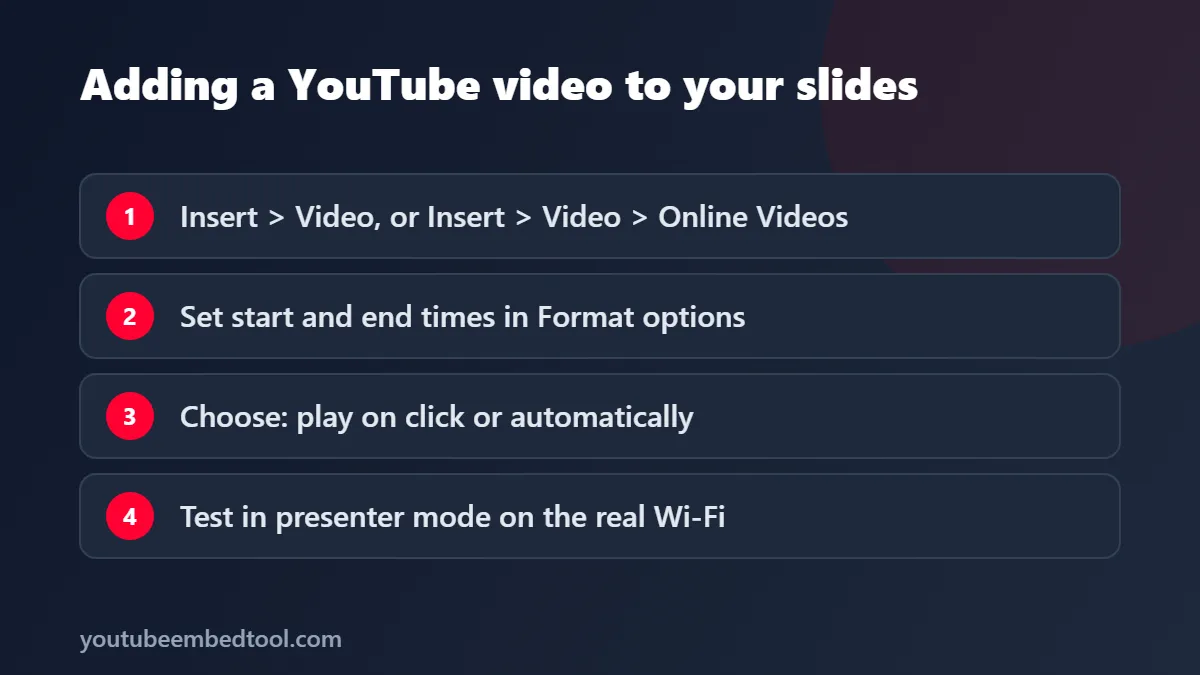
The short version: insert the video, set the start and end times, choose how it plays, and test it on the real network. Five extra minutes of checking beats standing at the front of a room refreshing a slide.
If you also want to put videos on a website, our HTML embed guide and the free embed code generator on our home page will get you there in a couple of minutes.
Frequently asked questions
Can I add a YouTube video to Google Slides on my phone?
Not fully. The Google Slides mobile app can play videos that are already in a deck, but inserting a new YouTube video works best on a computer browser.
Why does my YouTube video show a black box in PowerPoint?
Usually it means you're offline, the video is private, or the owner has turned off embedding. Check your connection first, then open the link in a browser to see if it plays there.
Will the video play if I download my slides as a PDF?
No. A PDF only shows a still image of the video. Add a visible link under it so people can watch it on YouTube.
Can I make the video loop in Google Slides?
Slides has no loop setting for YouTube videos. You can set the slide to advance automatically, or use a video file from Google Drive if looping really matters.