Can You Embed Unlisted or Private YouTube Videos? What Actually Works
Here's a question we get a lot: "I want this video on my website, but I don't want it showing up on my channel. Can I do that?"
Short answer: yes, make it unlisted. Private videos won't work. But the details matter, because "unlisted" isn't the same as "secret," and there are a few other settings that can stop a video from playing on your page even when the privacy setting looks right.
How each privacy setting behaves in an embed
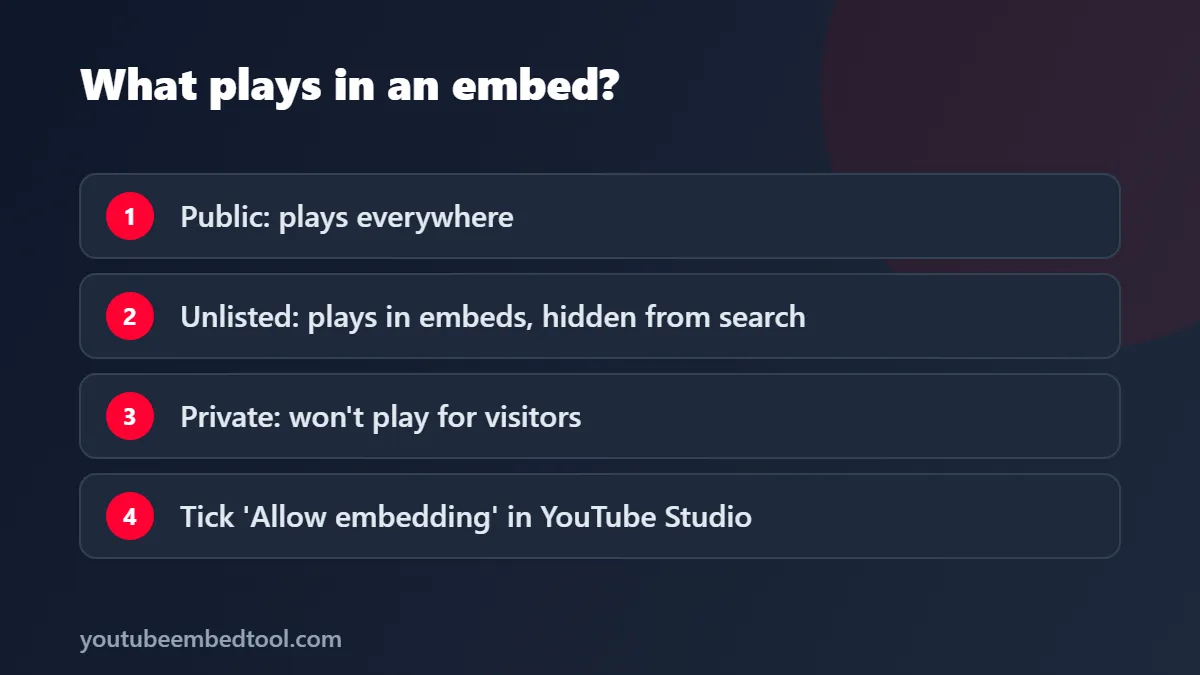
Public. Plays anywhere it's embedded. Shows up in search, on your channel and in recommendations.
Unlisted. Plays anywhere it's embedded, exactly like a public video. It doesn't show up in search results, on your channel page or in subscribers' feeds. Anyone with the link, or anyone who finds the embed on your page, can watch it.
Private. Won't play in an embed for visitors. They'll see a message saying the video is private or unavailable. Private videos only play for the owner and for specific Google accounts you've invited, and even those people usually need to watch on YouTube itself.
So if your goal is "on my site, not on my channel," unlisted is the setting you want.
How to make a video unlisted
- Open YouTube Studio and go to Content.
- Click the video's title (or the pencil icon) to open its details.
- Under Visibility, choose Unlisted and click Save.
You can change it back to public later, and the embed on your page keeps working either way. Once it's unlisted, grab the embed code from Share > Embed, or paste the link into our embed code generator to get a responsive version with your chosen options.
Check the "Allow embedding" box
This one catches people out. A video can be public or unlisted and still refuse to play on other sites because embedding is turned off.
In YouTube Studio, open the video's details, click Show more, and scroll to License and distribution. Make sure Allow embedding is ticked. If it isn't, visitors to your site see an error instead of the video. That's the classic "Error 150" or "Error 101" situation, which we cover in more detail in our embed errors guide.
Other things that block an embed
Even with the right privacy setting, a few kinds of video won't play properly on another site:
- Age-restricted videos. These usually show a message asking the viewer to watch on YouTube, where they can sign in and confirm their age.
- Members-only videos. Only channel members can watch them, so regular visitors to your site won't be able to.
- Videos with music claims. Sometimes a copyright owner allows a video on YouTube but blocks it on other sites. That's their choice, and there's no setting you can change to get around it.
- Scheduled premieres. Before the premiere, the embed shows a countdown instead of the video.
Unlisted is not the same as secure
It's worth being honest about this part. Unlisted only hides a video from YouTube's own listings. If the embed is on a public page, the video ID is right there in your page's code, and anyone can copy it and share the link. Search engines can also find unlisted videos if they're embedded on a page that gets indexed.
That's fine for most uses, like a product demo, a welcome video for new customers, or a lesson for a course. It's not fine for anything confidential. For that, you'll want:
- A members-only page on your own site, behind a login, with the unlisted video embedded there. People can still share the link, but casual visitors won't stumble on it.
- A paid video host with domain restrictions, which can refuse to play the video on any site except yours. YouTube doesn't offer that option.
We go deeper into the trade-offs in our post about self-hosting versus YouTube embeds.
A quick checklist before you publish
- Visibility is Public or Unlisted.
- Allow embedding is ticked.
- The video isn't age-restricted or members-only.
- You've tested the page in a private browser window where you're not signed in to YouTube. This is the important one, because as the owner you can sometimes see things your visitors can't.
If it plays in a private window, it'll play for your visitors.
Frequently asked questions
Can I embed a private YouTube video on my website?
No. Private videos only play for the owner and invited accounts, so visitors to your website will see an error. Change the video to unlisted if you want it to play on your site without appearing on your channel.
Do unlisted YouTube videos show up in Google search?
They don't appear in YouTube search, but if you embed an unlisted video on a public web page, search engines can still discover it through that page.
Will my embed break if I switch a video from unlisted to public?
No. The video ID stays the same, so the embed keeps working when you change between public and unlisted.
Why does my unlisted video play for me but not for visitors?
Check that Allow embedding is turned on and that the video isn't age-restricted. Then test in a private browser window, since being signed in as the owner can hide the problem.