How to Add a YouTube Video to Your Shopify Store (Product Pages and Homepage)
A product photo shows what something looks like. A 40-second video shows how it folds, how big it really is in someone's hand, and what that "soft-touch finish" actually means. That's why so many stores add video, and why it's worth doing properly.
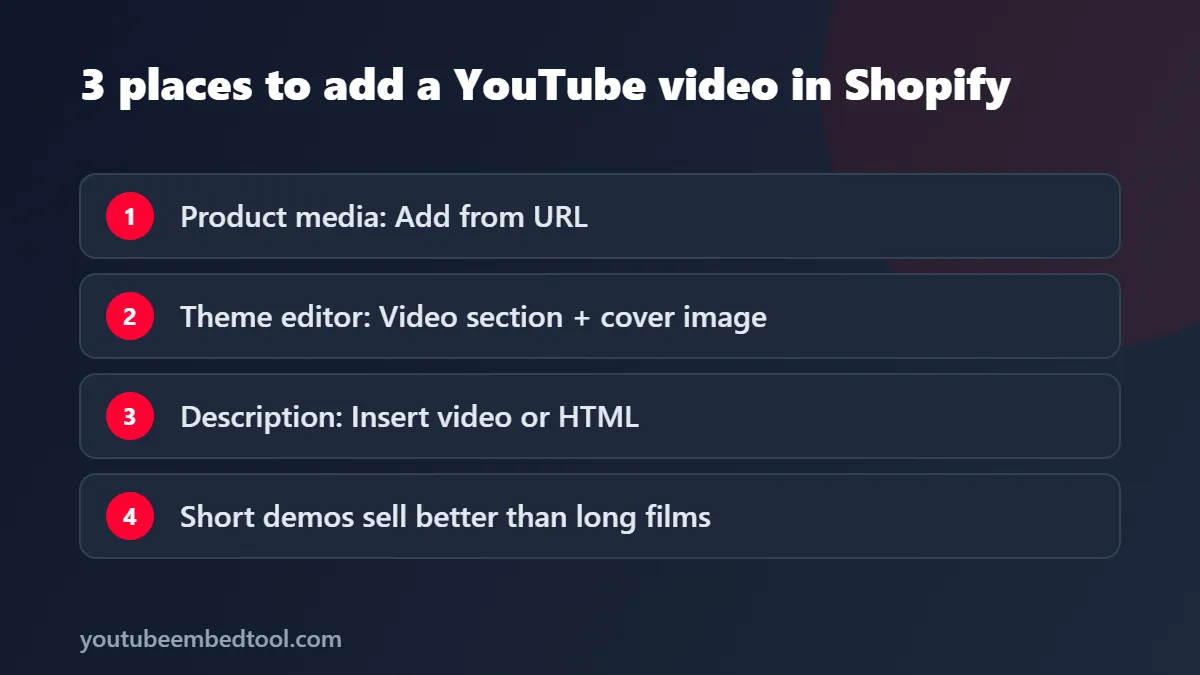
Shopify gives you three main places to put a YouTube video. They look similar but they suit different jobs, so let's go through each one.
Option 1: Add the video to the product's media gallery
This is the one most stores should start with. The video sits right alongside your product photos, so shoppers find it where they're already looking.
- In your Shopify admin, go to Products and open the product.
- In the Media section, look for the option to add from a URL. Depending on your admin version, it's a small link or a dropdown next to the upload button labeled something like Add from URL or Embed video.
- Paste the YouTube link and confirm.
The video now shows up as one of the product's media items. Drag it into position. I'd suggest putting it second, right after your main photo. The first image should still be a clean product shot, since that's what shows on collection pages and in search results.
Most modern themes, including Shopify's free ones, show a play icon on the thumbnail and play the video inside the gallery.
Option 2: Use the theme editor's Video section
This is best for brand videos on your homepage or a landing page, like the "how it's made" or "meet the founder" kind.
- Go to Online Store > Themes and click Customize.
- Choose the page you want to edit.
- Click Add section and pick Video.
- Paste your YouTube URL into the video URL field.
- Optionally upload a cover image, which shows until the visitor clicks play.
- Click Save.
The cover image is worth the effort. It lets you pick a clean, on-brand frame instead of whatever thumbnail YouTube picked, and it often helps the page load faster, because the player isn't fully loaded until someone actually wants it. Speaking of which, our article on YouTube embeds and page speed explains why that matters.
Option 3: Put the video in the product description
Sometimes you want a video halfway through the description, like a setup guide below the specs. For that:
- Open the product and click into the Description editor.
- Click the Insert video button in the toolbar (it looks like a small film strip). On some versions, you click Show HTML instead.
- Paste the embed code from YouTube's Share > Embed button, or from our embed code generator, which gives you a responsive version that resizes properly on phones.
- Save the product.
If you use the HTML view, make sure the code is responsive. A fixed 560 by 315 player looks tiny on desktop and can overflow on small phones. Our guide to responsive YouTube embeds has a copy-and-paste version.
Which videos actually help sell
For small stores, the videos that pull their weight are usually:
- Short demos. Thirty to ninety seconds, showing the product being used. No long intro.
- Size and scale shots. The product next to a hand, a phone or a coffee mug.
- Setup or assembly walk-throughs, especially for anything with parts.
- Real customer clips, if you have permission to use them.
Long brand films are lovely, but they belong on the homepage, not in the product gallery where people are trying to make a quick decision.
A few settings worth knowing
- Turn off suggested videos from other channels. You can't fully remove the end screen, but adding
rel=0to the embed URL keeps the suggestions to your own channel. Our embed parameters cheat sheet lists every option. - Use your own channel's videos. If you embed someone else's review, you can't control whether it gets taken down or ends with a link to a competitor.
- Check it on your phone. Most Shopify traffic is mobile. Open the product on your own phone before you call it done.
- Muted autoplay is rarely worth it on product pages. It uses data and can feel pushy. Let shoppers press play.
Wrapping up
For most stores, start with the product media gallery. Use the theme's Video section for brand stories, and keep description embeds for setup guides or extra detail. Whatever you pick, short and specific beats long and polished.
Frequently asked questions
Does adding a YouTube video slow down my Shopify store?
A standard YouTube embed adds a fair amount of code to a page. Using a cover image, or a theme that only loads the player when clicked, keeps the impact small.
Can I upload a video file to Shopify instead of using YouTube?
Yes. Shopify lets you upload video files directly to product media. That avoids YouTube branding and suggestions, but uses your store's media storage limits.
Why won't my YouTube video play on my Shopify product page?
The most common reasons are that the video is private, embedding is turned off in YouTube Studio, or the video is age-restricted. Open the link in a private browser window to check.
Will YouTube ads show on my product videos?
They can. YouTube may show ads on almost any video, even from channels that aren't in the Partner Program. If you want a guaranteed ad-free player, upload the video file to Shopify directly.