How to Make a YouTube Embed Responsive on Mobile

To make a responsive youtube embed on mobile, wrap the YouTube <iframe> in a container div and apply the modern CSS rule aspect-ratio: 16 / 9; width: 100%; height: auto;. This forces the video player to automatically shrink or expand to fit any screen width while maintaining the standard widescreen proportions without letterboxing or broken page layouts.
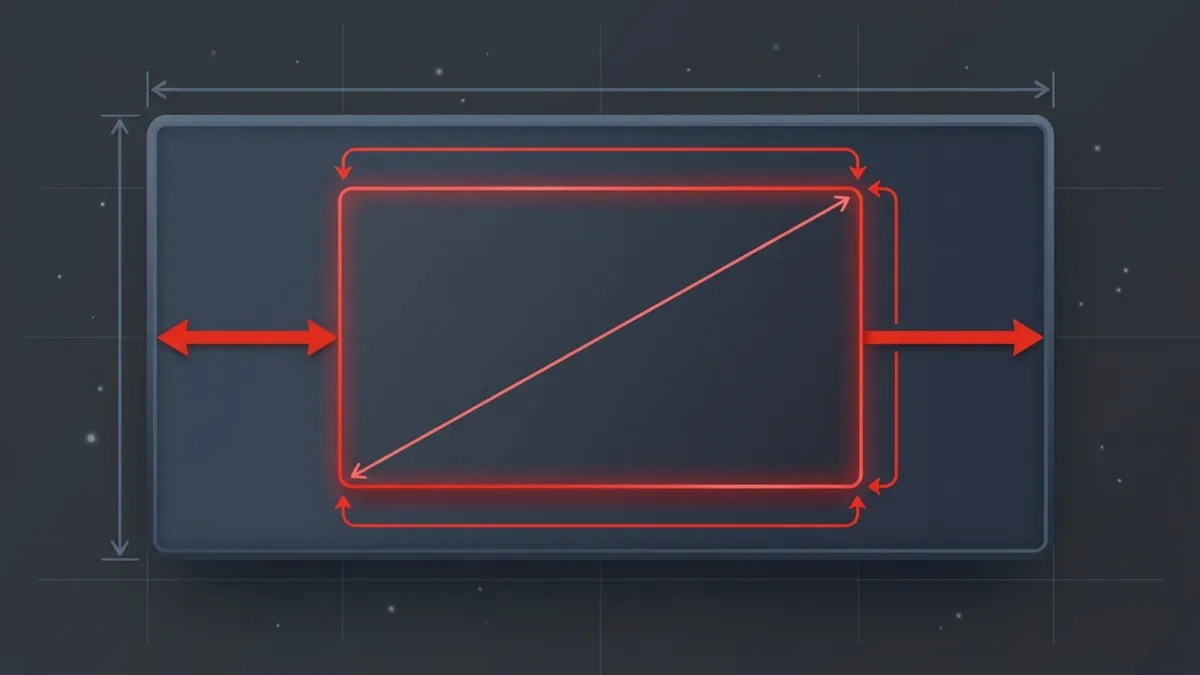
By default, the standard embed code provided directly by YouTube uses fixed dimensions (typically width="560" and height="315"). When a smartphone loads a page with these fixed values, the player overflows the viewport, creates awkward horizontal scrollbars, and cuts off playback controls.
Why Default YouTube Embeds Break on Mobile
When you click "Share" and choose "Embed" on YouTube, you receive raw HTML that looks like this:
<iframe width="560" height="315" src="https://www.youtube.com/embed/dQw4w9WgXcQ" title="YouTube video player" frameborder="0" allowfullscreen></iframe>The issue lies in the hardcoded pixel values. Most modern smartphone viewports measure between 360 and 430 CSS pixels wide in portrait mode. A fixed 560-pixel iframe instantly shatters the mobile layout.
To build a fluid, mobile-friendly experience, you need the video to dynamically adjust its dimensions according to its parent container. If you are learning the fundamentals of inserting video players into web pages, review our detailed guide on how to embed a YouTube video in HTML before diving into styling adjustments.
Method 1: The Modern CSS aspect-ratio Property (Recommended)
Modern browsers fully support the native CSS aspect-ratio property. This approach requires minimal markup, zero math hacks, and only a couple of CSS declarations.
Step 1: Add the HTML Markup
Wrap your iframe inside a dedicated container element, such as a <div> with a descriptive class name:
<div class="video-wrapper">
  <iframe
    src="https://www.youtube.com/embed/dQw4w9WgXcQ"
    title="YouTube video player"
    allow="accelerometer; autoplay; clipboard-write; encrypted-media; gyroscope; picture-in-picture; web-share"
    allowfullscreen>
  </iframe>
</div>
Notice that the width and height attributes were removed from the iframe, or overridden via CSS.
Step 2: Add the CSS Rules
Apply the following rules to your stylesheet:
.video-wrapper {
  width: 100%;
  max-width: 800px; /* Optional: limits max size on desktop screens */
  margin: 0 auto;    /* Centers the video container */
}

.video-wrapper iframe {
  width: 100%;
  aspect-ratio: 16 / 9;
  height: auto;
  border: 0;
  display: block;
}
How It Works
width: 100%instructs the iframe to take up the full horizontal space of.video-wrapper.aspect-ratio: 16 / 9tells the browser to calculate the vertical height automatically based on that width.height: autoensures the calculated height overrides any default iframe heights.
If you embed YouTube Shorts or vertical footage instead of horizontal landscape videos, change aspect-ratio: 16 / 9; to aspect-ratio: 9 / 16;.
Method 2: The Classic Intrinsic Ratio (Padding-Bottom Hack)
Before the aspect-ratio CSS property existed, web developers used the intrinsic ratio padding trick. This technique relies on the fact that vertical percentage padding in CSS is calculated relative to the width of the parent container.
Because standard YouTube widescreen video uses a 16:9 ratio, you divide 9 by 16 to get 0.5625, or 56.25%.
The HTML
<div class="responsive-embed-container">
  <iframe
    src="https://www.youtube.com/embed/dQw4w9WgXcQ"
    title="YouTube video player"
    allowfullscreen>
  </iframe>
</div>
The CSS
.responsive-embed-container {
  position: relative;
  width: 100%;
  padding-bottom: 56.25%; /* 16:9 Aspect Ratio (9 / 16 = 0.5625) */
  height: 0;
  overflow: hidden;
}

.responsive-embed-container iframe {
  position: absolute;
  top: 0;
  left: 0;
  width: 100%;
  height: 100%;
  border: 0;
}
Why Use This Method?
While newer projects should prefer aspect-ratio, the padding trick remains valuable if you maintain legacy enterprise platforms or send HTML emails that strip modern CSS declarations.
| Feature | Modern aspect-ratio | Classic padding-bottom |
|---|---|---|
| Lines of CSS | 4 to 5 | 8 to 10 |
| Positioning Needed | No (display: block) | Yes (position: absolute) |
| Browser Compatibility | Modern browsers (all current) | Universal (works on ancient engines) |
| Code Readability | High and intuitive | Moderate (requires mathematical knowledge) |
Method 3: Responsive YouTube Embed with Tailwind CSS
If your website runs on Tailwind CSS, making an embed responsive requires no custom CSS file at all. Tailwind includes built-in aspect ratio utilities.
<div class="w-full max-w-3xl mx-auto">
  <iframe
    class="w-full aspect-video border-0 rounded-xl shadow-lg"
    src="https://www.youtube.com/embed/dQw4w9WgXcQ"
    title="YouTube video player"
    allowfullscreen>
  </iframe>
</div>w-fullexpands the iframe to fill the container.aspect-videoautomatically setsaspect-ratio: 16 / 9.rounded-xlandshadow-lgadd polished visual styling to match modern app aesthetics.
Method 4: Use a Free Embed Code Generator
If you prefer not to write or edit CSS manually, use our free YouTube Embed Code Generator. It creates fully responsive, production-ready embed codes with a single click.
Beyond automated responsiveness, the generator lets you toggle privacy-enhanced mode (youtube-nocookie.com), disable related videos from other channels, enable looping, and adjust starting parameters without writing complex query strings. If you want to drop visitors directly into an exact tutorial chapter, you can also combine your responsive wrapper with links from our YouTube Timestamp Link Generator.
If you manage complex multimedia tutorials on your site, explore our complete archive of embedding guides for additional styling and player control techniques.
Best Practices for Mobile-Optimized YouTube Embeds
Creating a mobile-friendly video player involves more than just sizing. Consider these performance and layout best practices:
1. Enable Lazy Loading
YouTube embeds load substantial JavaScript and CSS assets. If you place multiple videos on a single page, your mobile page speed scores will drop sharply. Add loading="lazy" to the iframe tag:
<iframe
  loading="lazy"
  src="https://www.youtube.com/embed/dQw4w9WgXcQ"
  title="YouTube video player"
  allowfullscreen>
</iframe>
This stops mobile browsers from downloading the YouTube player script until the user scrolls near the video container.
2. Don't Autoplay on Mobile
Mobile web browsers frequently restrict video autoplay with sound to protect user mobile data limits. If you must set a video to play automatically upon load, append &autoplay=1&mute=1 to the URL. Remember that forcing videos to play immediately on cellular data can create high bounce rates.
If your site features tutorials where specific segments matter most, read our walkthrough on how to start a YouTube video at a specific time so viewers jump straight to the relevant clip without wasting data.
3. Ensure Viewport Meta Tags Are Configured
Even a perfectly styled CSS container will fail if your HTML document lacks the proper viewport configuration in its <head> section. Verify that your site includes this standard tag:
<meta name="viewport" content="width=device-width, initial-scale=1.0">Without this tag, mobile operating systems render your web page in a simulated desktop viewport, causing the layout to shrink into an illegible format.
Frequently asked questions
Why does my YouTube embed look tiny on mobile phones?
Your embed usually appears tiny if your HTML page lacks the standard `<meta name="viewport" content="width=device-width, initial-scale=1.0">` tag in its `<head>` section, which forces mobile browsers to render desktop layouts at reduced zoom.
What is the standard aspect ratio for a responsive YouTube embed?
Standard landscape YouTube videos use a 16:9 aspect ratio (`aspect-ratio: 16 / 9` in CSS). Vertical videos and YouTube Shorts require a 9:16 aspect ratio instead.
Can I make a YouTube embed responsive without using CSS?
No, pure HTML iframes require fixed width and height dimensions by default. You must either use CSS rules like `aspect-ratio`, utility classes like Tailwind's `aspect-video`, or a no-code embed generator that produces responsive wrappers.
Does making a YouTube embed responsive hurt page loading speed?
No, responsiveness itself does not hurt loading speed. However, to keep page load times fast on mobile devices, always add the `loading="lazy"` attribute to your iframe to prevent scripts from executing until the user scrolls to the player.