How to Loop a YouTube Video on Desktop, Mobile, and Web Embeds
To loop a YouTube video on desktop, right-click the video player and select Loop from the menu. On mobile, tap the gear icon inside the player, tap Additional settings, and switch Loop video to on. If you are embedding a video on a website, add &loop=1&playlist=VIDEO_ID to the embed URL to keep it replaying automatically.
Whether you need continuous background music for work, white noise for sleep, or a workout clip on repeat, looping saves you from having to restart playback manually every few minutes. Here is the complete breakdown of every method available across devices and websites.
How to Loop a YouTube Video on Desktop
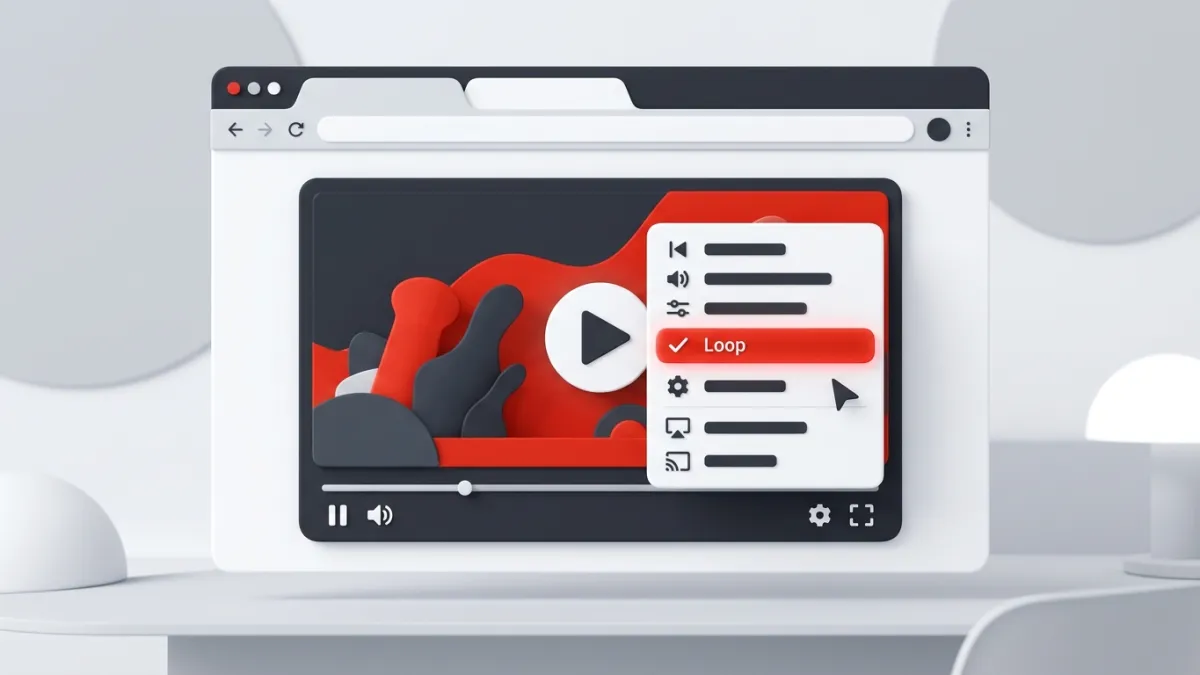
Looping on a computer is the fastest method because YouTube includes a native switch directly inside the HTML5 video player context menu.
Step-by-Step for Desktop Browsers
- Open your browser (Chrome, Firefox, Safari, Edge, or Brave) and navigate to the YouTube video you want to repeat.
- Right-click anywhere directly inside the playing video frame.
- Click Loop from the context menu.
Once clicked, a small checkmark will appear next to the word Loop. The video will now automatically restart from 0:00 as soon as it reaches the end.
Note on Browser Overrides: If you right-click and see your standard browser menu (with options like "Save image as..." or "Inspect"), right-click a second time in the exact same spot. The first click sometimes triggers the browser's default menu, while the second click brings up YouTube's custom player menu. For more quick navigation tricks, check out our guide to 25 YouTube keyboard shortcuts.
How to Loop YouTube Videos on Mobile (iPhone & Android)
The YouTube app for iOS and Android has built-in looping, though Google shifted the setting inside a sub-menu in recent updates.
Steps for the Official Mobile App
- Launch the YouTube app and open your chosen video.
- Tap the screen once to bring up the player controls.
- Tap the Settings (gear) icon located in the upper-right corner of the video.
- Select Additional settings from the bottom pop-up sheet.
- Tap Loop video to switch the setting from Off to On.
The video will remain on loop until you close the app, navigate to a new video, or manually toggle the switch back to Off.
Mobile Web Browser Workaround
If you prefer watching YouTube in Safari, Chrome, or Firefox on your smartphone instead of using the app:
- Open the video in your mobile browser.
- Tap the three dots or browser share button and select Request Desktop Site.
- Long-press or double-tap-and-hold the playing video until the desktop menu displays.
- Tap Loop.
This method is especially useful if you want audio to continue looping while using other apps or running in background tabs. You can explore more playback capabilities in our roundup of 9 hidden YouTube features.
How to Loop an Embedded YouTube Video on a Website
Embedding a looping video on your website requires a specific parameter tweak in the <iframe> embed code. Many developers assume adding loop=1 is enough, but YouTube's player API requires both the loop=1 parameter and the playlist parameter pointing back to the same video ID.
The Standard Embed Code Issue
If you simply add ?loop=1 to an embed URL, YouTube will ignore the command. The player only honors the loop parameter if it knows which playlist it is cycling through. To loop a single video, you define that video as its own single-item playlist.
The Working Embed Formula
Here is the exact structure you must use:
<iframe
  width="560"
  height="315"
  src="https://www.youtube.com/embed/VIDEO_ID?loop=1&playlist=VIDEO_ID"
  title="YouTube video player"
  frameborder="0"
  allow="accelerometer; autoplay; clipboard-write; encrypted-media; gyroscope; picture-in-picture"
  allowfullscreen>
</iframe>
Replace both instances of VIDEO_ID with the 11-character string from your video link (for example, dQw4w9WgXcQ).
If you want to customize your responsive dimensions, hide controls, or enable autoplay alongside looping without writing HTML manually, generate your embed snippet instantly with our free YouTube Embed Code Generator. For a deeper breakdown of embed styling, read our complete guide to embedding YouTube videos in HTML.
Looping Methods Comparison
| Platform | Method | Stays Active Across Videos? | Works in Background? |
|---|---|---|---|
| Desktop Browser | Right-click player > Select Loop | No (resets per video) | Yes (in open tab) |
| Mobile App | Gear icon > Additional settings > Loop video | No (resets per video) | Premium only |
| Mobile Web | Request Desktop Site > Context Menu | No | Yes (varies by browser) |
| HTML Embed | ?loop=1&playlist=VIDEO_ID parameter | Always active | Yes |
| Custom Playlist | Create playlist > Click playlist repeat icon | Yes (loops entire queue) | Yes |
How to Loop a Specific Section of a Video
Sometimes you only want to loop a 30-second guitar riff, a tutorial step, or a specific lecture concept rather than an entire two-hour recording.
While YouTube's default native loop tool only restarts videos from the beginning, you can repeat specific segments using two clean techniques:
1. Set Custom Start and End Points in Embeds
If you are embedding the clip on a personal dashboard, Notion page, or web page, pair the loop parameters with start and end times (measured in seconds):
<iframe
  src="https://www.youtube.com/embed/VIDEO_ID?start=45&end=75&loop=1&playlist=VIDEO_ID"
  width="560"
  height="315">
</iframe>
To find the exact second markers quickly, paste your video link into the YouTube Timestamp Link Generator.
2. Using Playlists for Segment Repetition
If you want multiple clips to cycle in sequence without embedding:
- Create a new personal playlist on YouTube.
- Add the video (or multiple videos) to that playlist.
- Open the playlist player view.
- Click the Repeat icon (two arrows forming a rectangle) in the playlist control box above the queue.
- Click it once to loop the entire playlist indefinitely, or click it twice to loop the current single track.
Troubleshooting: Why Isn't My Video Looping?
If your video halts at the end instead of restarting, check these common causes:
- Autoplay is overriding the loop: In rare browser updates, having global Autoplay turned on may pull up a recommended video before the loop fires. Turn off the Autoplay next video toggle in the bottom player bar.
- Missing playlist parameter in embeds: If your embedded video plays once and stops, verify that you included
&playlist=VIDEO_IDimmediately following?loop=1. Without the playlist parameter, iframe looping fails 100% of the time on single-video embeds. - Ad blocker interruptions: Aggressive script-blocking extensions can sometimes prevent YouTube's end-of-video event listener from triggering the replay action. Whitelist YouTube or pause the extension to verify.
Frequently asked questions
Can you loop a YouTube video on an iPhone without third-party apps?
Yes. Tap the screen while the video is playing, select the Settings gear icon in the top right, tap Additional settings, and toggle Loop video to On.
Why does the YouTube embed loop parameter not work?
YouTube requires the playlist parameter to accompany loop=1 for single video embeds. Your embed URL must be formatted as https://www.youtube.com/embed/VIDEO_ID?loop=1&playlist=VIDEO_ID.
Does looping a YouTube video count as multiple views?
Yes, repeated views from a looping video can count toward total views, provided each view meets YouTube's standard view verification criteria and is not flagged as spam behavior.
How do I turn off looping on YouTube?
On desktop, right-click the video and uncheck Loop. In the mobile app, tap Settings, go to Additional settings, and turn off Loop video.