How to Find Any YouTube Video ID in Seconds
A YouTube video ID is a unique 11-character string of letters, numbers, and symbols that identifies a specific video on the platform. To find it on desktop, copy the URL from your browser address bar and grab the characters immediately following v=. On mobile, tap Share, choose Copy link, and look for the 11 characters right after youtu.be/.
Whether you are embedding a player into your website, pulling asset data via an API, or generating clean tracking links, knowing how to isolate this ID saves time and prevents broken links.
What Is a YouTube Video ID and Why Do You Need It?
Every video uploaded to YouTube receives a permanent, unique identifier. This identifier is exactly 11 characters long and is composed of uppercase letters (A-Z), lowercase letters (a-z), numbers (0-9), underscores (_), and hyphens (-).
Because this system uses a 64-character alphabet, an 11-character string allows YouTube to generate over 73 quintillion unique combinations. Even if billions of videos are uploaded every year, YouTube will not run out of IDs anytime soon.
Here are the most common situations where you need raw video IDs rather than full links:
- Website embedding: Custom video players, CMS plugins, and iframe templates usually require just the raw ID. If you are learning how to embed a YouTube video in HTML, you will notice that standard iframe snippets rely directly on this parameter.
- Custom tools and scripts: Programmers interacting with the YouTube Data API must pass video IDs to fetch view counts, titles, descriptions, and comments.
- Asset extraction: Grabbing high-resolution poster images using a YouTube Thumbnail Downloader often works best when feeding the system a clean ID.
- Timestamp and parameter clean-up: Cleaning up cluttered tracking links from social media ensures visitors land directly on your content without unnecessary redirects.
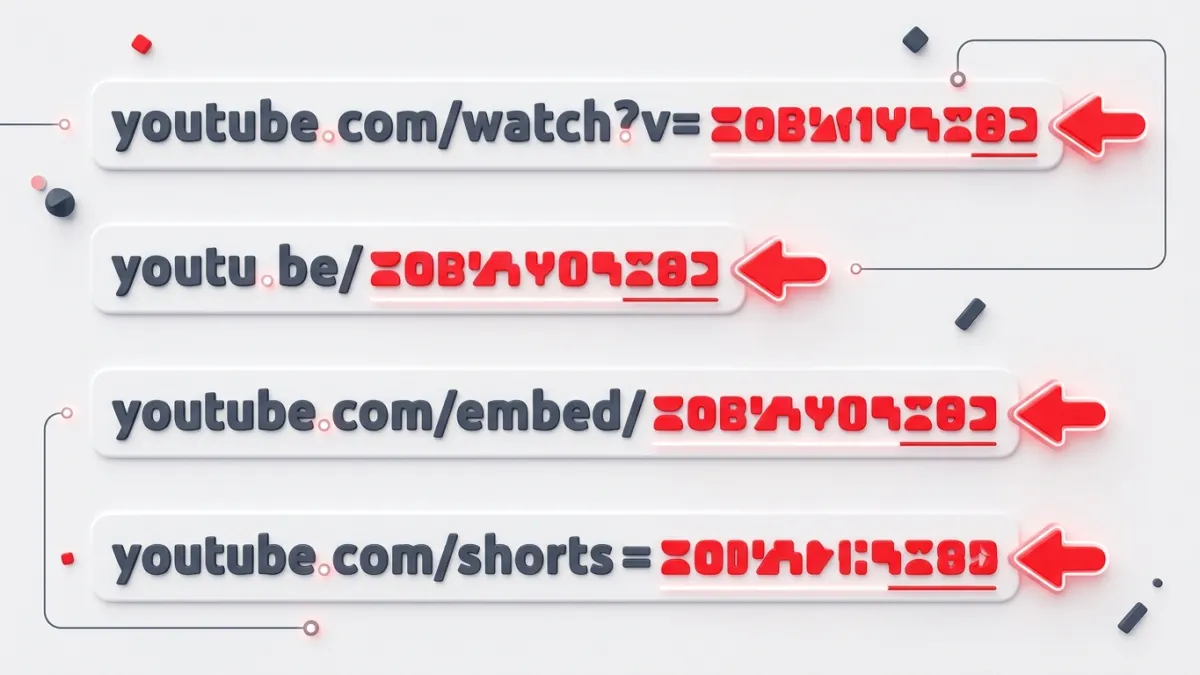
Finding a YouTube Video ID on Desktop Browsers
Locating an ID on a laptop or desktop computer takes only a few keystrokes. However, the exact location depends on which page layout or sharing option you use.
1. From the Address Bar (Standard Watch URLs)
When watching a standard video on YouTube, your browser's address bar displays a URL formatted like this:
https://www.youtube.com/watch?v=dQw4w9WgXcQ
The video ID sits immediately after v= and runs for exactly 11 characters. In this example, the ID is dQw4w9WgXcQ.
If the URL includes additional parameters (such as playlist IDs or tracking codes), stop copying before the first ampersand (&). For example:
https://www.youtube.com/watch?v=dQw4w9WgXcQ&t=45s&list=RDdQw4w9WgXcQ
The ID is still only dQw4w9WgXcQ. Everything starting at &t=45s represents extra parameters.
2. From the Share Button (Shortened URLs)
Clicking the Share button below any video generates a compact URL:
- Click Share under the video player.
- Look at the pop-up box displaying the shortened link (e.g.,
https://youtu.be/dQw4w9WgXcQ). - Click Copy.
In shortened youtu.be links, the ID is the entire string after the trailing slash (/). If you checked the "Start at" box, strip out ?t= and any numbers that follow.
3. From YouTube Shorts
YouTube Shorts use a slightly different URL structure in browser address bars:
https://www.youtube.com/shorts/mNuhKUOD_P0
The 11 characters directly following /shorts/ are the video ID. You can treat this ID just like any standard YouTube ID—it works in embeds, API queries, and standard watch URLs.
How to Find a YouTube Video ID on Mobile (iOS and Android)
The YouTube mobile app does not show a browser address bar, but finding the ID is just as fast once you know where to copy the link.
- Open the YouTube app on your smartphone or tablet.
- Navigate to the video or Short you want to identify.
- Tap the Share button below the video player (or on the right sidebar for Shorts).
- Select Copy link from the share sheet.
- Paste the link into your notes app, browser, or message field.
Your pasted link will look similar to this:
https://youtu.be/dQw4w9WgXcQ?si=abc123xyz456
To isolate the ID:
- Find
youtu.be/. - Highlight the 11 characters immediately following that slash.
- Stop before the question mark (
?). The characters after?si=are share tracking tokens introduced by YouTube, not part of the video ID.
The Quickest Method: Use a Link Converter
If you regularly work with messy URLs, batch links, or mobile share tags, parsing strings manually gets tedious. The fastest way to extract clean parameters is with the YouTube Video ID Finder & Link Converter.
Paste any link—whether it is a standard watch URL, a mobile share link with ?si= parameters, a Shorts link, or an embed tag—into the input field. The tool extracts the exact 11-character ID instantly and gives you one-click options to copy the ID, preview the video, or generate clean embed codes.
YouTube URL Formats Compared
Depending on where you copy a video from, the link structure varies. Use this table as a quick reference to locate the ID across different link formats:
| URL Type | Example URL | Where the ID Is Located |
|---|---|---|
| Standard Watch URL | youtube.com/watch?v=dQw4w9WgXcQ | Directly after v= |
| Shortened Share URL | youtu.be/dQw4w9WgXcQ | Directly after youtu.be/ |
| YouTube Shorts | youtube.com/shorts/dQw4w9WgXcQ | Directly after /shorts/ |
| Embed Iframe Link | youtube.com/embed/dQw4w9WgXcQ | Directly after /embed/ |
| Live Stream | youtube.com/live/dQw4w9WgXcQ | Directly after /live/ |
| URL with Timestamps | youtube.com/watch?v=dQw4w9WgXcQ&t=90s | Between v= and &t= |
Troubleshooting Common ID Mistakes
Extracting IDs by hand is easy, but small oversights can break your embeds or API calls. Keep these rules in mind:
1. Watch Out for Case Sensitivity
YouTube video IDs are strictly case-sensitive. The character A is fundamentally different from a. If you manually type an ID instead of copying and pasting it, double-check that every capital and lowercase letter matches the original URL exactly.
2. Strip Away Extra Query Parameters
Modern YouTube share links include tracking arguments like ?si=... or playlist information like &list=.... None of these parameters belong to the video ID itself. If your extracted ID is longer than 11 characters, you accidentally included a query string.
3. Handle Timestamps Properly
If someone shares a video configured to start at a specific minute, the link will end with something like ?t=120 or &t=2m00s. The ID itself remains static. If you want to create your own timed links after finding your ID, you can learn how to start a YouTube video at a specific time using standard syntax.
4. Special Characters Count
Hyphens (-) and underscores (_) frequently appear within IDs. Do not ignore them or mistake an underscore for a space. If a character appears within the 11-character block, it is a required part of that video's digital fingerprint.
Frequently asked questions
How many characters is a YouTube video ID?
A YouTube video ID is always exactly 11 characters long. It consists of uppercase letters, lowercase letters, numbers, hyphens, and underscores.
Are YouTube video IDs case-sensitive?
Yes. YouTube video IDs are strictly case-sensitive. Changing a single letter from uppercase to lowercase will lead to a 404 error or a completely different video.
Does a YouTube Short have a different ID format?
No. YouTube Shorts use the exact same 11-character ID format as regular long-form videos. The ID found after `/shorts/` can be used interchangeably in standard watch and embed URLs.
Can I find a video ID if the video is unlisted or private?
Yes. Unlisted and private videos still have an 11-character ID formatted in the URL exactly like public videos. However, you still need proper viewing permissions to play the video.