25 YouTube Keyboard Shortcuts Every Viewer Should Know
The fastest way to control video playback on desktop is using youtube keyboard shortcuts. Key combinations like K (play/pause), J and L (skip 10 seconds back and forward), and M (mute) allow you to navigate without touching your mouse. Pressing Shift + ? on any YouTube page opens the complete, built-in shortcut menu instantly.
While most viewers rely on clicking the on-screen player buttons, hotkeys give you far greater precision. They let you scrub frame-by-frame, adjust speeds on the fly, and jump to exact percentages of a video. Below are 25 essential shortcuts broken down by how you use them.
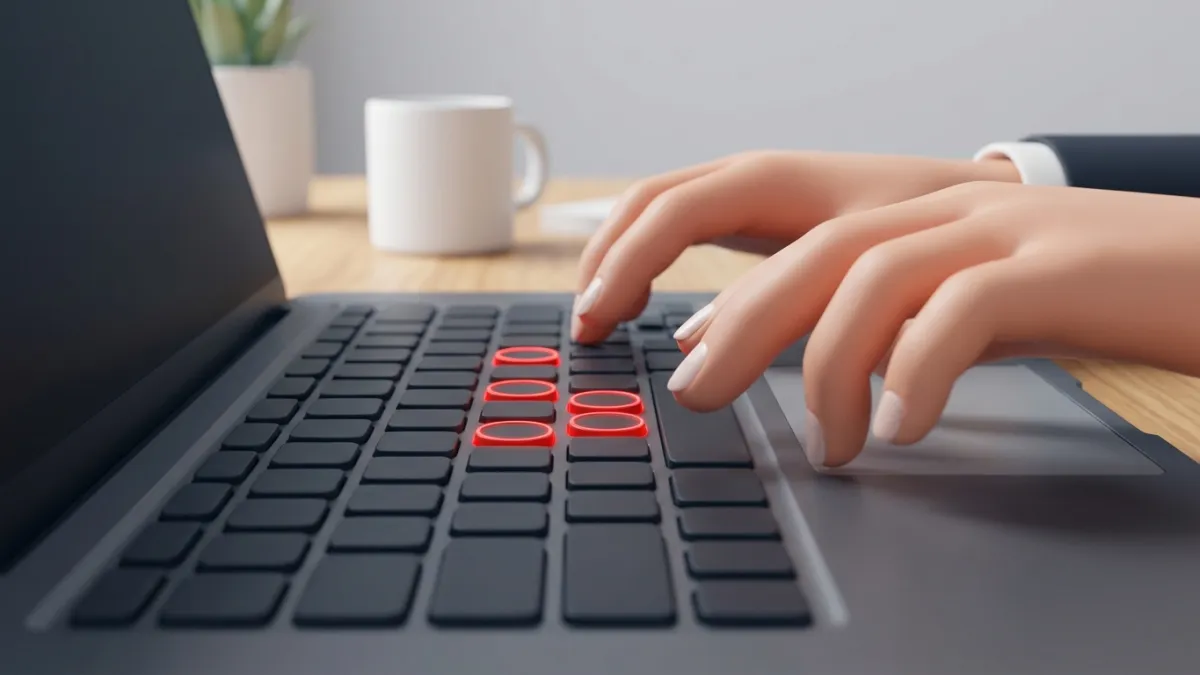
Essential YouTube Keyboard Shortcuts for Everyday Viewing
These core playback commands are the foundation of navigating YouTube smoothly on any desktop browser.
1. K — Play or Pause Video
While the Spacebar toggles playback, it only works if the video player itself is active. If your cursor last clicked the comment box or page background, pressing Space scrolls the web page down instead. Pressing K guarantees your video pauses or resumes instantly, regardless of where your focus is on the page.
2. J — Jump Backward 10 Seconds
Need to re-listen to a sentence you missed? Tap J to rewind exactly ten seconds. Tapping it repeatedly jumps back in 10-second increments.
3. L — Skip Forward 10 Seconds
To skip past an intro or sponsor read, tap L. Like J, each press advances playback by ten seconds.
4. Left Arrow (←) — Rewind 5 Seconds
When 10 seconds is too large of a leap, the Left Arrow key steps backward by five seconds. Note that this requires the player window to be the active element on your screen.
5. Right Arrow (→) — Fast-Forward 5 Seconds
The Right Arrow moves playback ahead by five seconds. Combining Left/Right arrows with J/L lets you zero in on specific moments quickly. If you want to share an exact moment with a friend instead of having them scrub manually, you can use our YouTube Timestamp Link Generator or read our guide on how to start a YouTube video at a specific time.
6. M — Mute or Unmute Audio
Tap M to immediately kill the audio track without losing your volume slider setting. Tapping M again restores the previous volume level.
7. Up Arrow (↑) — Increase Volume
The Up Arrow increases player volume by 5% increments. Tap it repeatedly to raise sound levels gradually.
8. Down Arrow (↓) — Decrease Volume
The Down Arrow lowers the volume by 5% increments until reaching complete silence.
Precision Scrubbing and Frame-by-Frame Controls
When analyzing sports footage, tutorial demonstrations, or high-speed action, normal playback speeds make it easy to miss crucial details. These shortcuts give you frame-accurate control.
9. Period (.) — Step Forward One Frame
First, press K to pause the video. Then press the . (period) key to step forward by exactly one video frame. This is invaluable for examining tutorials, dance choreography, or animation.
10. Comma (,) — Step Backward One Frame
With the video paused, press the , (comma) key to move backward by a single frame.
11. Number Keys 1 Through 9 — Jump to 10%–90%
The number keys along the top of your keyboard act as percentage bookmarks across the total video runtime:
- 1 jumps to 10%
- 2 jumps to 20%
- 5 jumps to halfway (50%)
- 9 jumps to 90%
12. 0 (Zero) or Home — Jump to the Beginning
Pressing 0 or the Home key returns you instantly to 0:00 of the current video.
13. End — Jump to the End
The End key skips directly to the final seconds of the video, triggering the end screen or advancing to the next item in an active playlist.
Playback Speed Shortcuts
Long podcasts and lectures can often be consumed faster without losing comprehension. You do not need to click into the gear menu to adjust playback rates.
14. Shift + > (Period) — Speed Up Playback
Hold Shift and press > (the period key) to increase playback speed by 0.25x. You can take a standard video up to 2x speed with four quick taps.
15. Shift + < (Comma) — Slow Down Playback
Hold Shift and press < (the comma key) to lower playback speed by 0.25x increments down to 0.25x normal speed.
View Modes and Interface Toggles
YouTube offers multiple display formats. You can switch between them with single keystrokes.
| Shortcut | Action | Description |
|---|---|---|
| F | Fullscreen | Expands the video to your entire monitor |
| T | Theater Mode | Stretches the player wide while keeping comments below |
| I | Miniplayer | Shrinks the video to the bottom corner so you can browse |
| C | Captions | Toggles closed captions (subtitles) on or off |
| Esc | Exit View | Exits Fullscreen, closes dialogs, or closes the miniplayer |
16. F — Fullscreen Mode
Press F to fill your screen. Pressing F a second time or pressing Esc returns to the standard browser view.
17. T — Theater Mode
Theater mode expands the video container horizontally to fit the browser margins, pushing comments and recommendations below the fold. It provides an immersive view without hiding your browser tabs.
18. I — Miniplayer Mode
Pressing I moves your video into a persistent picture-in-picture box in the bottom-right corner of the YouTube website, allowing you to search for other videos while the current stream plays.
19. C — Toggle Closed Captions
If captions or automatic subtitles are available on the video, tap C to turn them on. Tap C again to hide them.
20. Esc — Close or Exit
Pressing Esc serves as a universal escape hatch. It closes full-screen mode, dismisses the miniplayer, and closes active pop-up cards or search suggestion drop-downs.
Playlist Navigation and Advanced Hotkeys
If you watch organized series, music queues, or embedded players, these hotkeys streamline navigation.
21. Shift + N — Next Video
In a playlist or autoplay queue, holding Shift and pressing N jumps immediately to the next video.
22. Shift + P — Previous Video
Holding Shift and pressing P returns to the previous video in your playlist queue.
23. / (Forward Slash) — Focus the Search Box
Instead of grabbing your mouse to find a new clip, tap /. Your cursor will jump directly into the top search bar, ready for your query.
24. Tab and Enter — Keyboard-Only Navigation
You can navigate the entire player using standard web accessibility keys. Press Tab to cycle through buttons (play, volume, settings, quality) and press Enter or Space to activate the highlighted button. If you build websites and embed clips, check our YouTube Embed Code Generator to create clean, responsive players that preserve these accessible navigation standards.
25. Shift + ? — Display Shortcut Cheat Sheet
If you ever forget any of these commands while watching a video, hold Shift and press ? (or simply press the question mark key). A complete overlay displaying all supported hotkeys will appear on your screen.
For more guides on customizing your viewing workflow and managing media, explore our collection of YouTube Tips & Tricks.
Frequently asked questions
Do YouTube keyboard shortcuts work on embedded videos?
Yes, most playback shortcuts like K (play/pause), M (mute), and the arrow keys work on embedded players once you click the player frame to give it focus.
Why does the Spacebar scroll the page instead of pausing YouTube?
Spacebar triggers the browser's default scroll action unless the video player itself is actively focused. Using the K key avoids this issue because it pauses YouTube regardless of which element currently has focus.
Can I use YouTube keyboard shortcuts on mobile devices?
Physical keyboard shortcuts only work on mobile devices if you have an external Bluetooth keyboard connected. On touchscreens, YouTube uses double-tap gestures on the left and right sides of the screen to skip 10 seconds.
How do I change or customize YouTube keyboard shortcuts?
YouTube does not provide native settings to rebind default hotkeys. To create custom key bindings, you must install a browser extension designed for shortcut customization.