How to Share a YouTube Video at a Timestamp on Mobile
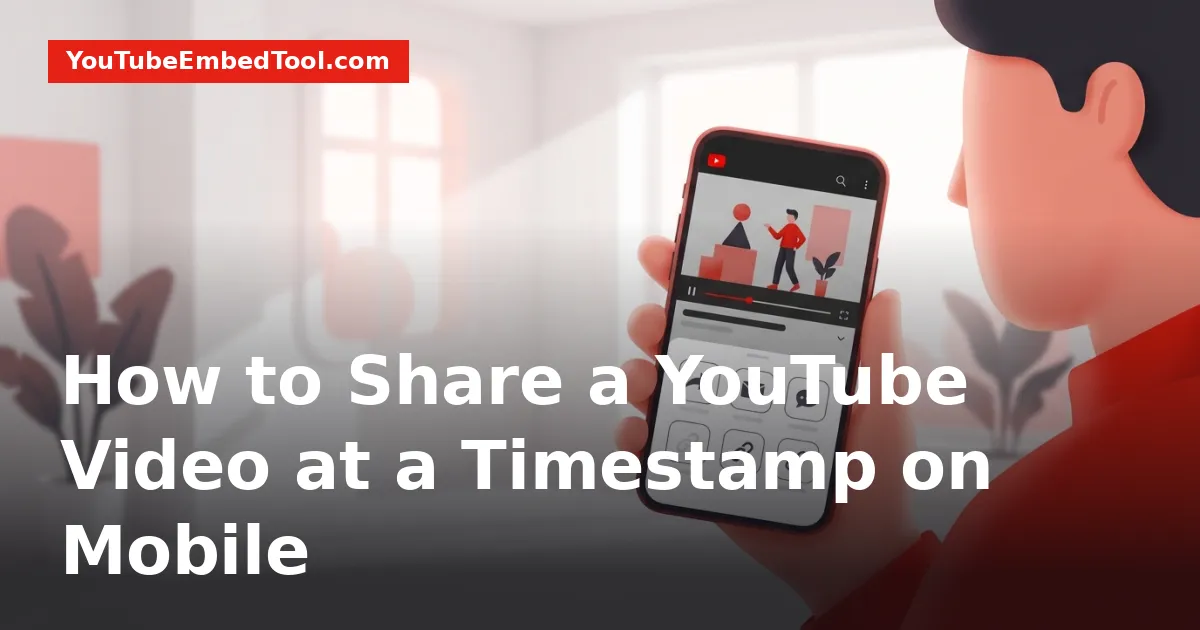
To share a YouTube video at a timestamp on mobile, tap the Share button beneath the video, choose Copy link, and paste the URL into your message or notes. Then, manually type ?t= followed by the time in seconds (or minutes and seconds, like ?t=1m30s) at the end of the URL before sending. While the desktop site has an automatic checkbox, mobile devices require a quick URL tweak or a browser trick to link to an exact moment.
Sharing a long podcast, tutorial, or concert clip is much more convenient when you send someone directly to the highlighted moment. Because the native YouTube app on iOS and Android does not include a one-tap "Start at" checkbox, viewers often struggle to point their friends to the right second.
Here are the four most reliable ways to share any YouTube video at a specific time directly from your smartphone.
The Quickest Mobile Method: Manual URL Parameters
The fastest way to share an exact moment without installing extra apps is to edit the link text before you hit send. When you tap Share > Copy link in the YouTube mobile app, YouTube copies a shortened URL, usually structured like https://youtu.be/VIDEO_ID.
You can tell YouTube's player where to start playback by appending a time parameter to that URL.
Step-by-Step Instructions
- Open the YouTube app and navigate to the video.
- Scrub to the exact spot you want to share and note the current time (for example, 4 minutes and 15 seconds).
- Tap the Share icon beneath the video player.
- Select Copy link.
- Paste the link into your chat app, text message, or email.
- Add your timestamp parameter directly to the end of the link without leaving any spaces:
- Using minutes and seconds:
https://youtu.be/abc123xyz?t=4m15s - Using total seconds:
https://youtu.be/abc123xyz?t=255
Understanding URL Formatting Rules
YouTube accepts two formats for the timestamp parameter. Picking the right syntax depends on the shape of your copied link:
| Copied Link Type | Example Base URL | Parameter to Append | Final Shareable Link |
|---|---|---|---|
Short link (youtu.be) | https://youtu.be/abc123xyz | ?t=95s or ?t=1m35s | https://youtu.be/abc123xyz?t=1m35s |
| Browser link with parameters | https://youtube.com/watch?v=abc123xyz&feature=share | &t=1m35s | https://youtube.com/watch?v=abc123xyz&feature=share&t=1m35s |
Rule of thumb: If the URL already contains a question mark (?), join your timestamp with an ampersand (&t=). If there is no question mark in the URL, begin your timestamp with a question mark (?t=).
If you prefer not to calculate seconds or reformat query parameters on a small touchscreen, bookmarking a dedicated YouTube Timestamp Link Generator makes the process instantaneous on mobile web browsers.
How to Share YouTube Video at Timestamp Using Desktop Mode
If you prefer the official, automated YouTube timestamp toggle that desktop users enjoy, you can access it directly on your mobile browser by requesting the desktop version of the site.
This method requires no mental math and lets YouTube generate the precise URL for you.
On Safari (iPhone / iPad)
- Open Safari and visit
m.youtube.com. - Search for the video you want to share and start playback.
- Pause the video at the exact second you want the link to open.
- Tap the Format / Page Settings button (the icon showing
aAor the puzzle piece) in the Safari address bar. - Tap Request Desktop Website.
- Once the page reloads in full desktop mode, tap the Share button below the video player.
- Check the box labeled Start at [MM:SS].
- Tap Copy next to the generated link.
On Google Chrome (Android / iOS)
- Open Chrome and navigate to the video on YouTube.
- Tap the three vertical dots in the top-right (Android) or bottom-right (iOS) corner of Chrome.
- Check the box or tap the option for Desktop site.
- Pause the video at your target timestamp.
- Tap the Share button beneath the player.
- Select the Start at checkbox, which automatically captures your current playback second.
- Tap Copy and send your generated link.
For more ways to control playback launch points across different platforms, see our guide on how to start a YouTube video at a specific time.
Using Comment Timestamps as a Fast Mobile Shortcut
Did you know you can create a clickable timestamp directly inside any YouTube comment section? This is one of several hidden YouTube features built into the mobile application.
If you want to bookmark a specific section for yourself or point other commenters to a standout moment, you do not need to mess with URL formatting at all.
- Scroll down to the comment box while watching the video.
- Type the time using standard colon notation (e.g.,
02:45or1:14:02). - Add your comment text next to the timestamp (e.g.,
02:45 Best guitar solo here!). - Submit your comment.
YouTube automatically converts any time formatted as MM:SS or HH:MM:SS into an active, clickable blue hyperlink. Tapping that link immediately jumps playback to that point. You can also tap the three dots next to your posted comment, select Share, and send the comment directly to a friend.
Common Mobile Timestamp Issues and How to Avoid Them
Even with the correct steps, mobile links can occasionally misbehave depending on which operating system or chat client the recipient uses.
The YouTube App Overrides the Parameter
On some versions of iOS and Android, tapping a shared link immediately hands off playback to the native YouTube mobile app. In rare cases, outdated app builds ignore incoming URL query parameters and begin playback from 0:00.
To ensure your recipient reaches the exact point:
- Mention the timestamp in the body of your message alongside the link (e.g., "Check out the demo at 3:12:
https://youtu.be/abc?t=3m12s"). - Encourage the recipient to open links in a browser tab if their YouTube application fails to respect the jump parameter.
Sharing Timestamps on YouTube Shorts
YouTube Shorts do not currently support timestamp query parameters like standard horizontal videos. Appending ?t= to a /shorts/ URL will not scrub the short-form video to a specific second. If you need to share a segment of a 3-minute Short, consider opening the Short as a regular video URL by replacing /shorts/ with /watch?v= in your browser address bar before appending the timestamp.
If you want to speed up long tutorials once you reach your timestamp, you can also combine timestamped links with YouTube playback speed tricks to quickly scan through chapters.
For more helpful guides on mastering mobile viewing and link customization, explore our YouTube Tips & Tricks section.
Frequently asked questions
Why doesn't the YouTube mobile app have a 'Start at' checkbox?
YouTube keeps its mobile interface minimal to save screen space, leaving the automated timestamp checkbox exclusive to the desktop web player.
Can I share a timestamp using hours, minutes, and seconds?
Yes. You can format the parameter as `?t=1h20m15s` for a video starting at 1 hour, 20 minutes, and 15 seconds, or calculate the total time in seconds.
Do timestamp links work on both Android and iPhone?
Yes. Both iOS and Android support timestamped links, whether the recipient opens the link in a mobile browser or the official YouTube application.
What should I do if the link opens from the beginning instead of my timestamp?
Make sure you used a question mark (`?t=`) if there were no prior parameters, or an ampersand (`&t=`) if the URL already had query tags like `?feature=share`.