YouTube Launches Custom Feeds and Redesigned Home Bar
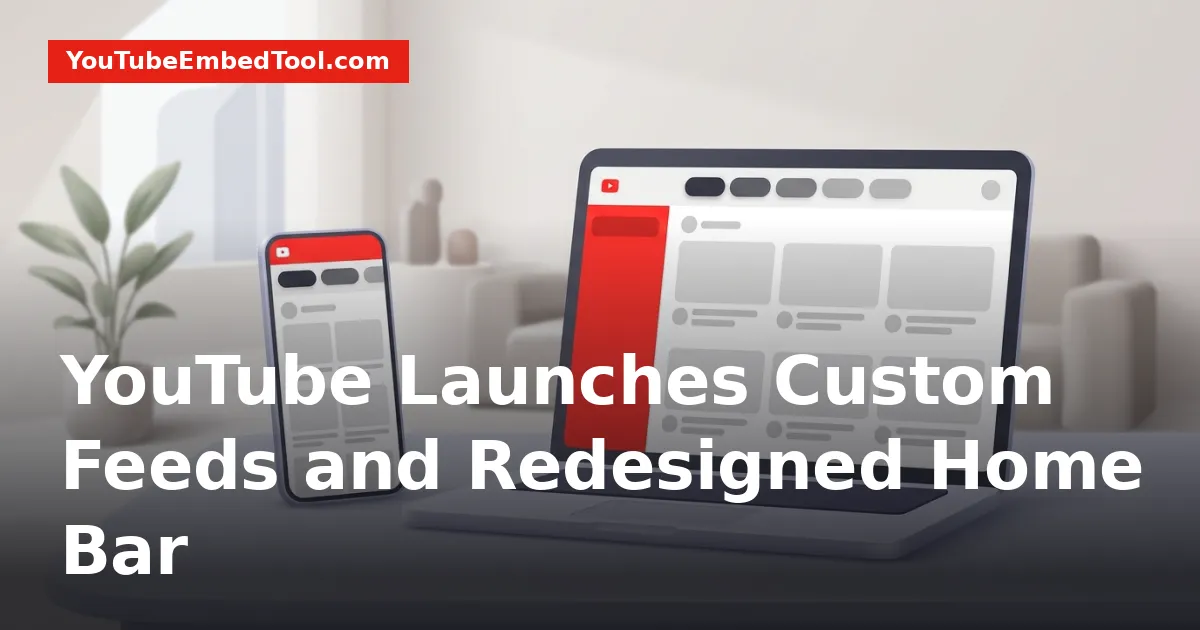
YouTube custom feeds allow viewers to create personalized video streams using conversational prompts rather than relying solely on the platform's default recommendation algorithm. Launched on October 22, 2026, this feature lets you describe the exact topics, creators, video lengths, or moods you want to watch and pins the resulting feed to your Home screen across devices.
Alongside custom feeds, YouTube introduced an updated navigation bar at the top of the Home tab. This redesign simplifies moving between different types of media and brings your channel subscriptions directly to the front of your browsing experience.
How YouTube Custom Feeds Work
For years, browsing YouTube meant accepting whatever the platform's recommendation engine placed on your Home tab or running manual searches. While mastering YouTube search tricks to find exactly what you want helps when hunting down specific uploads, browsing for general entertainment often required sifting through unrelated recommendations.
YouTube custom feeds change that dynamic by introducing a prompt-driven discovery experience. Instead of passively clicking through suggested videos or building manual watchlists, you can instruct YouTube to curate an ongoing stream based on your specific criteria.
When creating a custom feed, you enter a conversational description covering parameters such as:
- Specific topics: Focus on niche subjects like vintage synthesizer repair or urban gardening.
- Creator preferences: Highlight specific channels or groups of creators you enjoy.
- Video duration: Request clips under a specific runtime, such as guided meditations under ten minutes.
- Mood or style: Ask for upbeat cooking shows, ambient background audio, or relaxed deep-dive essays.
Once created, the custom feed generates a continuous stream of videos matching your prompt. Best of all, your custom feeds sync seamlessly between mobile devices and desktop browsers signed into the same Google account, ensuring your curated streams follow you everywhere.
How to Create and Manage Custom Feeds
Setting up a custom feed takes only a few taps on mobile or clicks on desktop. Because you can alter the prompt whenever your preferences change, you do not need to start from scratch when your viewing habits evolve.
Creating a New Feed
- Open YouTube on your desktop browser or mobile app while signed into your account.
- Navigate to the top of your Home tab and tap the “+” icon located in the navigation area.
- In the prompt field, type a clear natural language description of what you want to watch (for example, "quick home workout routines under 15 minutes").
- Submit the prompt to generate your dedicated video stream.
- The feed will automatically pin itself to the top of your Home screen interface for quick access.
Editing or Refining an Existing Feed
If a feed begins showing content outside your intended scope, or if you want to narrow down the parameters:
- Tap or click on the pinned custom feed at the top of your interface.
- Select the prompt box displayed at the very top of the active feed.
- Modify your phrasing—such as specifying a different creator or adjusting the preferred video length.
- Save your changes to immediately update the stream's contents.
Feed Limits: Standard Accounts vs. YouTube Premium
While every eligible viewer receives access to custom feeds, YouTube has instituted different capacity tiers depending on subscription status. Standard accounts have a lower cap on active feeds, while YouTube Premium subscribers enjoy expanded room to experiment with niche viewing topics.
| Feature | Standard YouTube Account | YouTube Premium Subscriber |
|---|---|---|
| Maximum Active Custom Feeds | Up to 3 feeds | Up to 8 feeds |
| Prompt Editing & Refinement | Unlimited | Unlimited |
| Cross-Device Syncing | Included (Mobile & Desktop) | Included (Mobile & Desktop) |
| Navigation Bar Pinning | Included | Included |
If you reach your account limit and want to explore a new category, you can either edit the prompt inside an existing feed or delete an old one to free up space.
Redesigned Home Navigation Bar: New Formats and "Subs"
Alongside custom feeds, YouTube rolled out significant structural updates to the top navigation bar within its mobile application. The goal of this overhaul is reducing the friction required to jump between diverse content formats.
Direct Access to Formats
The top bar on mobile now highlights direct access points for specific formats, including:
- Live: Instant access to active livestreams and gaming broadcasts.
- Music: A dedicated portal for tracks, music videos, and performances.
- Movies & TV: Quick browsing for full-length films and television programming (shown to users with qualifying channel subscriptions).
The New "Subs" Tab Placement
Previously, navigating to your subscribed channels required using the bottom navigation panel or moving away from the primary Home feed. In this update, YouTube moved the Subscriptions feed directly into the top bar of the Home tab, relabeling it simply as "Subs."
This placement gives you one-tap access to your favorite creators right alongside your newly created custom feeds, without forcing you to switch tabs or lose your place on the Home screen. If you frequently inspect and organize creator content or use tools like the YouTube Video ID Finder & Link Converter to grab video identifiers, having your subscription list pinned so prominently makes tracking new uploads much faster.
Eligibility and Rollout Details
Not all users will see custom feeds immediately. YouTube is rolling out the feature in stages, with specific account requirements in place for the initial release:
- Location: Available first to users located in the United States.
- Language: English-language prompts and interface settings only.
- Age: Available to signed-in accounts aged 13 and older.
- History Settings: Your Google account must have both Watch History and Search History enabled. If your history is paused or cleared automatically, custom feeds will not function.
- Platforms: Active across both desktop and the updated mobile application.
YouTube has confirmed that broader international availability and support for additional regions will arrive at later dates following the initial rollout.
What Viewers Should Do Next
If your account meets the rollout criteria, you can begin organizing your viewing habits right away:
- Check Your History Settings: Ensure both search and watch history are turned on within your Google account activity controls.
- Audit Your Routine: Think about common browsing sessions that clutter your feed—such as background ambient noise, brief workouts, or daily news recaps—and replace manual searches with custom prompts.
- Explore Hidden Tools: Custom feeds join a wide variety of lesser-known platform capabilities; check our breakdown of 9 hidden YouTube features most people never use to get the most out of your setup.
- Stay Informed on Platform Changes: Keep an eye on our YouTube News section for updates on when custom feeds expand outside the United States.
By combining prompt-driven custom feeds with the restructured top bar, YouTube is giving viewers far more direct control over what appears on their screens. Instead of wrestling with a one-size-fits-all algorithm, you can now curate dedicated channels tailored entirely to your interests.
Frequently asked questions
How do I get YouTube custom feeds?
Custom feeds are currently available to signed-in users aged 13 and older in the United States using English, provided both watch and search history are enabled. Eligible users can tap the '+' icon on the Home tab to start.
How many custom feeds can I create?
Standard YouTube accounts can store up to 3 active custom feeds at one time, while YouTube Premium subscribers can save up to 8 active custom feeds.
Can I edit a custom feed after making it?
Yes. You can edit or refine any custom feed at any time by tapping the prompt box located at the top of the active feed screen.
Do custom feeds sync between my phone and computer?
Yes. Custom feeds automatically sync across both mobile and desktop devices as long as you are signed into the same Google account.