How to Embed a YouTube Playlist on Any Website
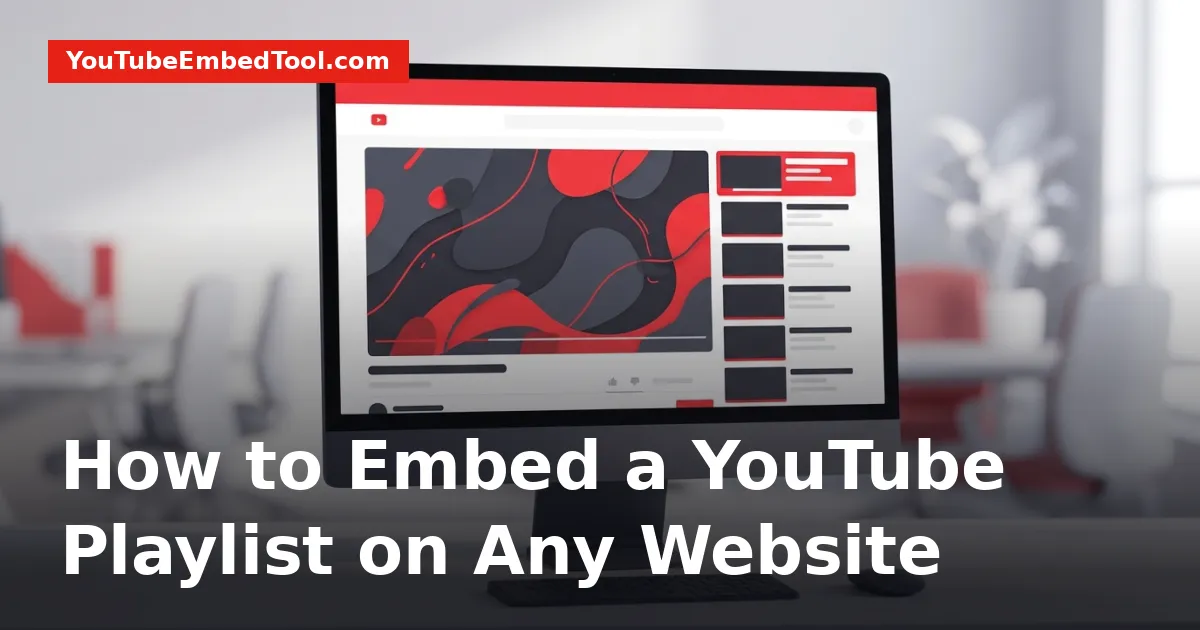
To embed a YouTube playlist on your website, copy your playlist ID and insert it into an HTML iframe using the src="https://www.youtube.com/embed/videoseries?list=YOUR_PLAYLIST_ID" format. You can also generate this code directly on YouTube by opening the playlist, clicking Share, and selecting Embed. Paste the resulting code into your website's HTML editor to display a functional, scrollable playlist player.
Whether you run a portfolio, an educational hub, or an e-commerce site, embedding a full playlist keeps visitors engaged without forcing them to jump back and forth to YouTube. Here is the complete walkthrough for generating, customizing, and styling your playlist player.
How to Get the Official Embed Code from YouTube
YouTube provides a native embed generator for playlists right inside the desktop interface. Follow these steps to grab your code in seconds:
- Open your web browser and navigate to YouTube.
- Open the playlist you want to share. Make sure you view the playlist landing page or play the first video within the playlist context.
- Click the Share button located beneath the playlist title and thumbnail.
- In the share pop-up modal, click the Embed button.
- A preview window will appear alongside a block of HTML code.
- (Optional) Check or uncheck Show player controls or Enable privacy-enhanced mode depending on your site's privacy requirements.
- Click Copy in the bottom-right corner of the modal.
Once copied, navigate to your website's content management system (WordPress, Webflow, Squarespace, or raw HTML) and paste the code into a custom HTML block or embed widget.
If you prefer to configure your embeds automatically with custom dimensions, autoplay, and loop settings, you can use our free YouTube Embed Code Generator to build custom iframe tags instantly.
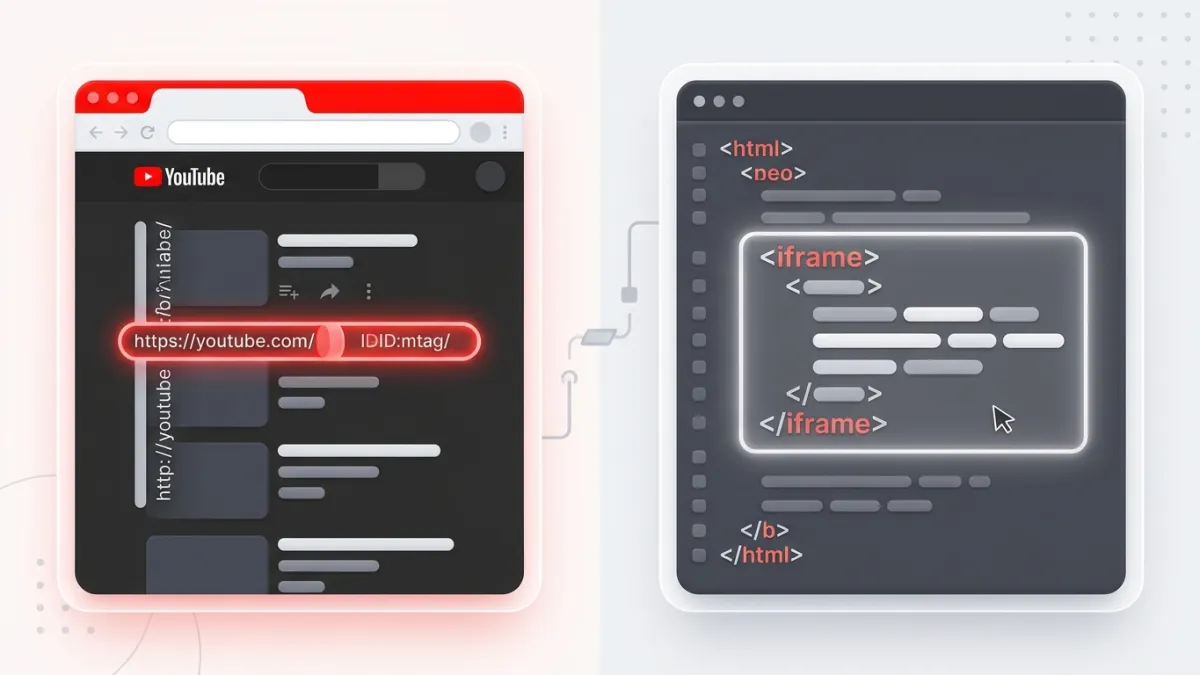
How to Embed YouTube Playlist Code Manually
Sometimes you only have a playlist ID, or you are assembling dynamic templates in a web framework. You do not need to visit YouTube every time to generate an iframe.
Every YouTube playlist has an identification string found directly in its browser URL. For example, look at this URL:
https://www.youtube.com/playlist?list=PLrEnWoR732-DN6gmB1S8P8zX_WlU2L-hM
The string following list= (PLrEnWoR732-DN6gmB1S8P8zX_WlU2L-hM) is the playlist ID.
To construct your iframe manually, copy and paste this standard HTML structure:
<iframe
  width="560"
  height="315"
  src="https://www.youtube.com/embed/videoseries?list=PLrEnWoR732-DN6gmB1S8P8zX_WlU2L-hM"
  title="YouTube playlist player"
  frameborder="0"
  allow="accelerometer; autoplay; clipboard-write; encrypted-media; gyroscope; picture-in-picture; web-share"
  referrerpolicy="strict-origin-when-cross-origin"
  allowfullscreen>
</iframe>
Replace the value of list= with your actual playlist ID. If your site follows modern HTML standards, you can review our guide on how to embed a YouTube video in HTML for deeper insights into standard attributes like referrerpolicy and allow permissions.
Customizing Your Playlist Embed with URL Parameters
You can alter how your playlist behaves by appending query parameters to the iframe's src URL. To chain multiple parameters, use & between each key-value pair.
Here are the most useful URL parameters for playlists:
| Parameter | Values | What It Does |
|---|---|---|
index | Number (e.g., 3) | Specifies which video in the playlist plays first (0-indexed or 1-indexed depending on player version; usually starts at 1 for the first video). |
autoplay | 0 or 1 | Automatically begins playing when the page loads (requires mute=1 in modern browsers). |
mute | 0 or 1 | Starts playback with audio muted. Required if you want autoplay to succeed. |
loop | 0 or 1 | Loops the playlist indefinitely once it reaches the final clip. |
controls | 0 or 1 | Hides or shows playback controls at the bottom of the player frame. |
Example: Starting on Video #3 with Muted Autoplay
If you want the player to skip directly to the third clip and begin playing automatically without sound, assemble your src like this:
<iframe
  width="560"
  height="315"
  src="https://www.youtube.com/embed/videoseries?list=PLrEnWoR732-DN6gmB1S8P8zX_WlU2L-hM&index=3&autoplay=1&mute=1"
  title="YouTube playlist player"
  frameborder="0"
  allow="accelerometer; autoplay; clipboard-write; encrypted-media; gyroscope; picture-in-picture; web-share"
  allowfullscreen>
</iframe>
If your player does not start playback on page load despite setting autoplay=1, review YouTube autoplay embed not working for step-by-step browser permission fixes.
How to Make a Playlist Embed Responsive on Mobile
By default, YouTube gives you fixed pixel dimensions (width="560" height="315"). On a smartphone, this causes horizontal scrolling and breaks your layout.
To make your playlist adapt fluidly to desktop monitors, tablets, and mobile devices, use modern CSS. Check out our detailed guide on how to make a YouTube embed responsive on mobile, or use the quick CSS snippets below.
Modern CSS (Using aspect-ratio)
Modern browsers support the CSS aspect-ratio property. Wrap your iframe in a simple container and apply standard styling:
<div class="playlist-wrapper">
  <iframe
    src="https://www.youtube.com/embed/videoseries?list=PLrEnWoR732-DN6gmB1S8P8zX_WlU2L-hM"
    title="Responsive playlist player"
    frameborder="0"
    allowfullscreen>
  </iframe>
</div>.playlist-wrapper {
width: 100%;
max-width: 800px; /* Adjust according to your content width */
margin: 0 auto;
}
.playlist-wrapper iframe {
width: 100%;
aspect-ratio: 16 / 9;
border: none;
display: block;
}This snippet forces the iframe to expand to 100% of the parent container while strictly maintaining the classic 16:9 widescreen video ratio without black bars.
Troubleshooting Playlist Embed Errors
If your playlist player displays an error message or fails to load specific videos, verify the following settings:
1. Playlist Privacy Settings
YouTube will not play playlists marked as Private inside an iframe. Change the playlist privacy setting inside YouTube Studio to either Public or Unlisted.
2. Individual Video Restrictions
Even if your overall playlist is Public, individual creators can disable embedding for specific videos. When an embedded player reaches a video with embedding disabled, it displays a notice: "Playback on other websites has been disabled by the video owner." To avoid playback halts, replace or remove restricted clips from your playlist queue.
3. Domain or Age Restrictions
Videos with content warnings, age gates, or country-level copyright blocks cannot play inside third-party website embeds. Viewers will see a prompt directing them to watch the clip directly on YouTube.
4. Using Privacy-Enhanced Mode
If your audience resides in jurisdictions with strict data privacy rules (such as the GDPR in Europe), swap www.youtube.com with www.youtube-nocookie.com in your embed URL. This prevents YouTube from storing tracking cookies on your visitors' devices until they actively press play.
Frequently asked questions
Can I embed a YouTube playlist without showing the playlist menu icon?
No, the playlist drawer icon in the top right corner is built into YouTube's embedded playlist player so viewers can browse queue items. You can hide bottom player controls with controls=0, but the playlist identity header remains visible.
Why does my embedded playlist show 'Video unavailable'?
This happens if the playlist is set to Private, if the first video in the list has third-party embedding disabled by its creator, or if the video has age restrictions.
Can I embed a YouTube playlist on WordPress without code?
Yes. In the WordPress block editor, simply add a YouTube block or an Embed block, paste the full URL of the playlist page, and WordPress will automatically render the player.
Does embedding a playlist count toward YouTube watch hours?
Yes. Views and watch time generated through embedded players count toward your channel analytics, provided the video is played legitimately and embedding is permitted.