How to Get More Views From Embedded YouTube Videos
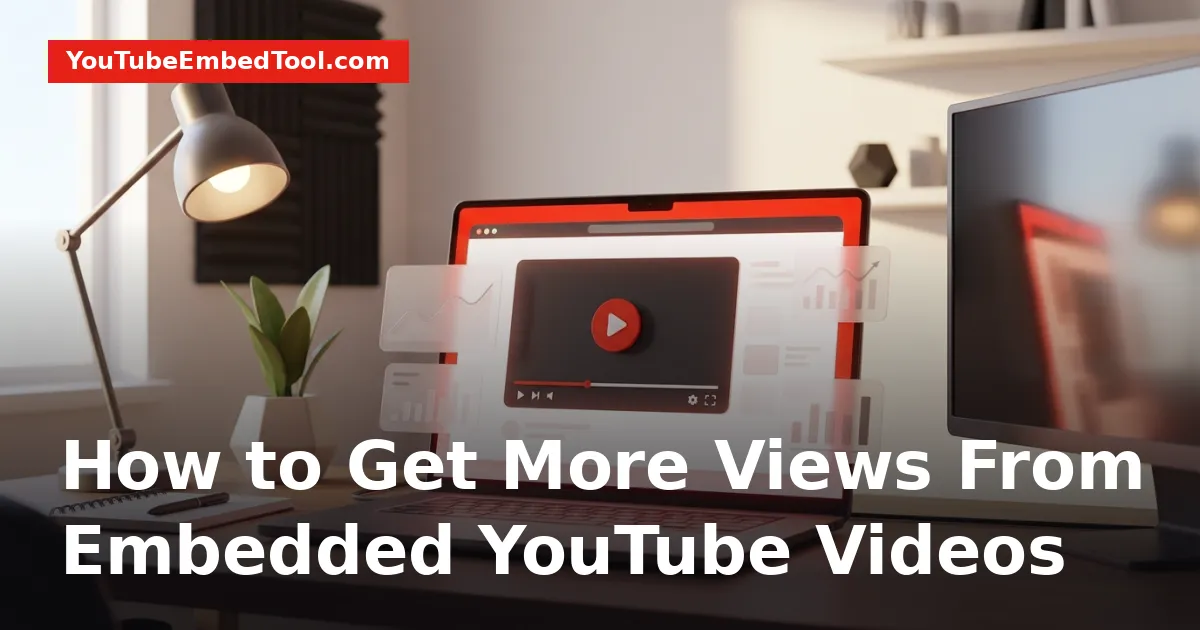
To get more embedded youtube views, place your video player directly beneath a compelling introductory hook, make the iframe fully responsive across devices, and give visitors a concrete reason to click play. Aligning the video topic with high-intent search traffic on your website turns casual readers into active viewers and helps YouTube count authentic watch time.
Embedding videos on your blog or landing pages is one of the most reliable ways to distribute your content outside the YouTube algorithm. However, simply pasting an iframe code onto an empty sidebar rarely produces results. You need deliberate placement, smart formatting, and tailored embed configurations.
How Embedded YouTube Views Are Counted
Before optimizing for more views, it helps to understand what actually registers as a legitimate view on YouTube.
YouTube tracks embedded views through its official iframe player API. For an embedded view to reflect in your public view count and YouTube Studio analytics, several criteria must be met:
- User Intent: The viewer must deliberately click play or interact with the player. Completely unprompted autoplaying videos that are muted and quickly scrolled past rarely count toward public metrics.
- Official Embed Player: The embed must use YouTube's standard iframe player architecture. Third-party scrapers or stripped players will not pass metrics back to YouTube's servers.
- Playback Duration: The visitor must watch the video for a meaningful duration (generally accepted as around 30 seconds, or the full duration if the clip is shorter).
- Public Privacy Settings: If your video is set to private or embed playback is disabled in advanced channel settings, the video cannot be viewed on external domains at all.
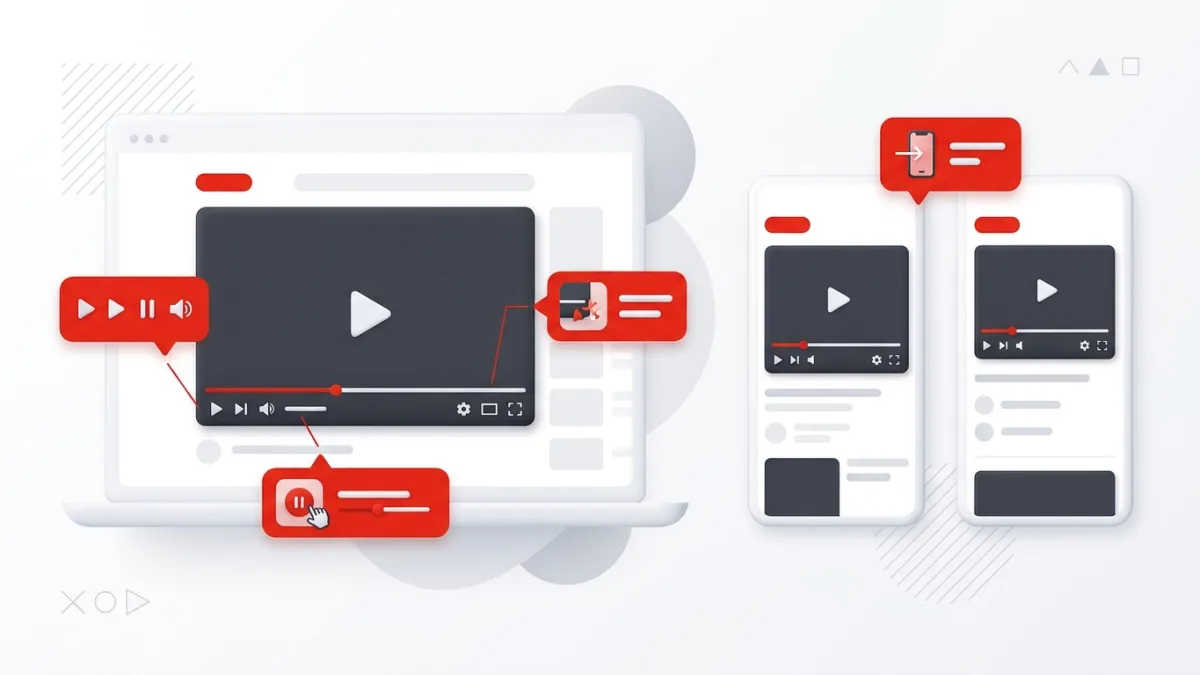
6 Tactics to Maximize Embedded YouTube Views
Turning passive web visitors into video viewers requires strategic design choices. Use these six practical methods to improve your playback rates.
1. Position the Player Above the Fold or Right Below the Hook
Where you place your embed on the page makes a massive difference in play rates. Placing a video at the very bottom of a 3,000-word article guarantees that only a small percentage of readers will ever see it.
- Top-of-Page Placement: Ideal when the video is the primary asset (such as a video tutorial accompanied by written notes). Put the player directly below your main heading and a one-sentence summary.
- Mid-Article Supporting Placement: Place the embed right after you introduce a complex topic that is significantly easier to understand visually. Include a brief caption like "Watch this 2-minute walkthrough to see the setup in action."
Avoid sidebar placements. Modern web users suffer from banner blindness and routinely ignore narrow sidebar media widgets.
2. Make Your Embeds Fully Responsive on Mobile
Over half of all web browsing occurs on smartphones and tablets. If your iframe code uses static pixel dimensions like width="560" height="315", mobile screens will clip the player or create horizontal scrollbars, leading visitors to abandon playback immediately.
Use modern CSS container techniques or wrapper classes to maintain a clean 16:9 aspect ratio across any viewport. If you want step-by-step code snippets for styling your player dynamically, review our guide on How to Make a YouTube Embed Responsive on Mobile.
3. Generate Clean URLs With Custom Parameters
Standard embed links contain default settings that can distract users or show irrelevant suggestions when the video pauses. You can customize playback parameters directly in the iframe src URL to create a streamlined experience.
To save time building these strings manually, use the free YouTube Embed Code Generator. It allows you to toggle player controls, disable keyboard shortcuts, loop playback, and set start points without touching raw code.
| Parameter | Recommended Value | Purpose |
|---|---|---|
rel | 0 | Limits related videos at the end of playback to clips from your own channel. |
playsinline | 1 | Forces mobile browsers (especially Safari on iOS) to play in-line instead of taking over the full screen. |
start | [seconds] | Skips intros and immediately delivers the answer the visitor searched for. |
controls | 1 | Retains native player controls so visitors can adjust volume and playback speed easily. |
For a deeper look at manual coding options, check our guide on How to Embed a YouTube Video in HTML (Complete Guide).
4. Provide Context and Timecodes Around the Video
Website readers are often in "skimming mode." They rarely hit play on an unfamiliar 15-minute video unless they know what they are getting.
Precede your embed with a short bulleted list summarizing the key takeaways covered in the clip. If the video covers multiple subtopics, list clickable timestamps in your article text below the player. Giving visitors a roadmap reduces friction and builds immediate trust.
5. Embed Curated Playlists Instead of Standalone Clips
If you produce multi-part tutorials, series, or thematic guides, embedding a single video leaves watch time on the table. When a viewer finishes a standalone video, the embed stops or shows recommendations that might lead them away.
By embedding a playlist, the next video in your sequence queues up automatically. This turns one embedded view into two, three, or more consecutive views from an engaged user. Follow our walkthrough on How to Embed a YouTube Playlist on Any Website to set this up cleanly.
6. Avoid Aggressive Unmuted Autoplay
Setting a video to start playing with sound the moment a page loads is one of the fastest ways to drive visitors away. Modern desktop and mobile browsers actively block unmuted autoplay by default to prevent jarring disruptions.
If you choose to use autoplay, always pair it with the mute=1 parameter so the video functions as a silent, motion-based teaser. If your autoplay embed fails to launch consistently, read YouTube Autoplay Embed Not Working? 5 Fixes That Work to troubleshoot browser permissions and parameter ordering.
Troubleshooting Embed Issues That Suppress Views
If your embed view counts remain flat despite steady website traffic, verify these technical settings:
- Embedding Allowed in Channel Settings: In YouTube Studio, navigate to Content > Details > Show More. Ensure the checkbox for "Allow embedding" is marked.
- Domain Restrictions: If your video contains third-party claimed audio or content ID matches, certain copyright holders restrict playback on external websites.
- Age Restrictions: Age-restricted videos will not play inside standard iframe embeds; they force visitors to navigate directly to YouTube to verify their account age.
- Page Load Speed: Heavy video players can slow down your page. Use lightweight facade loading (where a static thumbnail placeholder loads first, and the heavier iframe only loads when clicked) to keep your Core Web Vitals healthy while still capturing views.
By matching the right embed parameters to high-intent written content, you provide real value to your site visitors while consistently driving your channel metrics forward.
Frequently asked questions
Do embedded views count toward YouTube monetization requirements?
Yes, valid embedded views count toward both total view counts and public watch hours, provided the playback occurs through the official YouTube iframe player and follows standard viewer engagement guidelines.
Why are my embedded YouTube views not updating in YouTube Studio?
YouTube validates views to filter out bots and spam before adding them to public tallies. Embedded views often face a processing delay of 24 to 48 hours before reflecting accurately in YouTube Studio analytics.
Does embedding my own YouTube video on multiple pages violate YouTube policy?
No, embedding your videos across your website or blog is fully permitted and encouraged. However, artificially generating plays with automated scripts, hidden iframes, or continuous page-refresh loops violates YouTube's fake engagement policies.
Can I monetize the ads that appear on embedded YouTube videos?
Yes, if your channel is part of the YouTube Partner Program, standard video ads and overlay banners can appear on embedded players, generating ad revenue just as they do on YouTube.com.