How to Add Chapters to YouTube Videos (Timestamps That Actually Work)
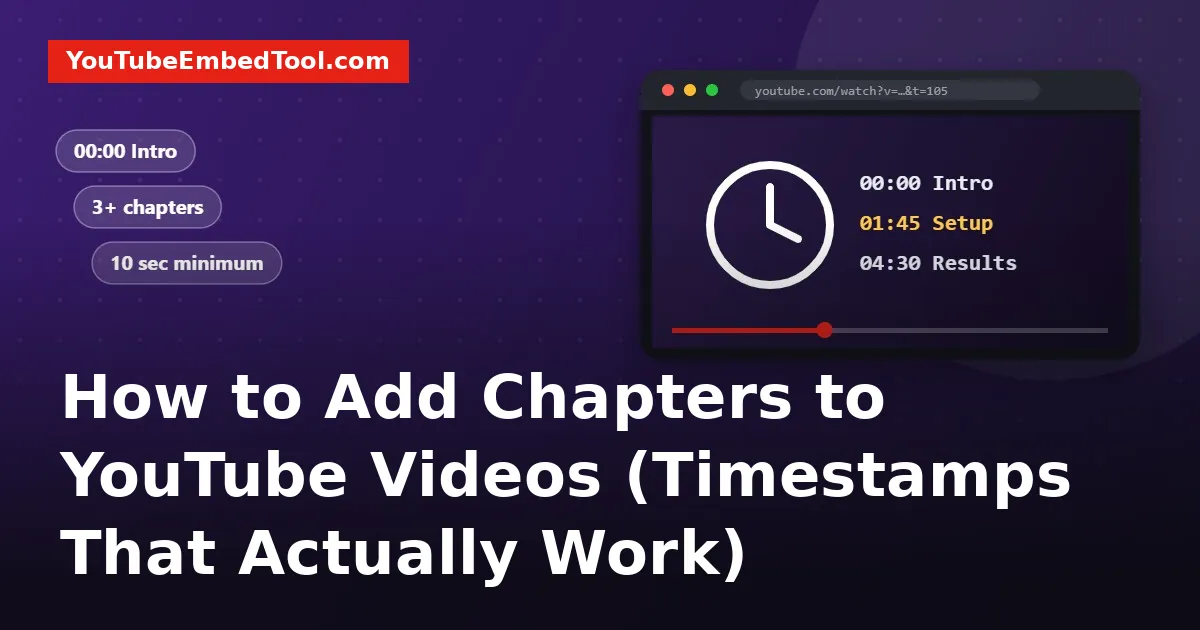
Chapters are those little segments you see on the progress bar of many YouTube videos. Hover over them and you see a title. Tap one and you jump straight to that part.
They're one of the easiest wins on YouTube. Viewers find what they came for faster, and YouTube can show your chapters in search results, sometimes pointing people straight to the section that answers their question. All you need is a list of timestamps in your description.
The quick version
Paste a list like this into your video description:
00:00 Intro
01:12 What you need
03:40 Step 1: Set up the account
07:05 Step 2: Connect your site
10:30 Common mistakes
13:15 Final result
Save, and in most cases chapters appear on the progress bar.
The three rules YouTube checks
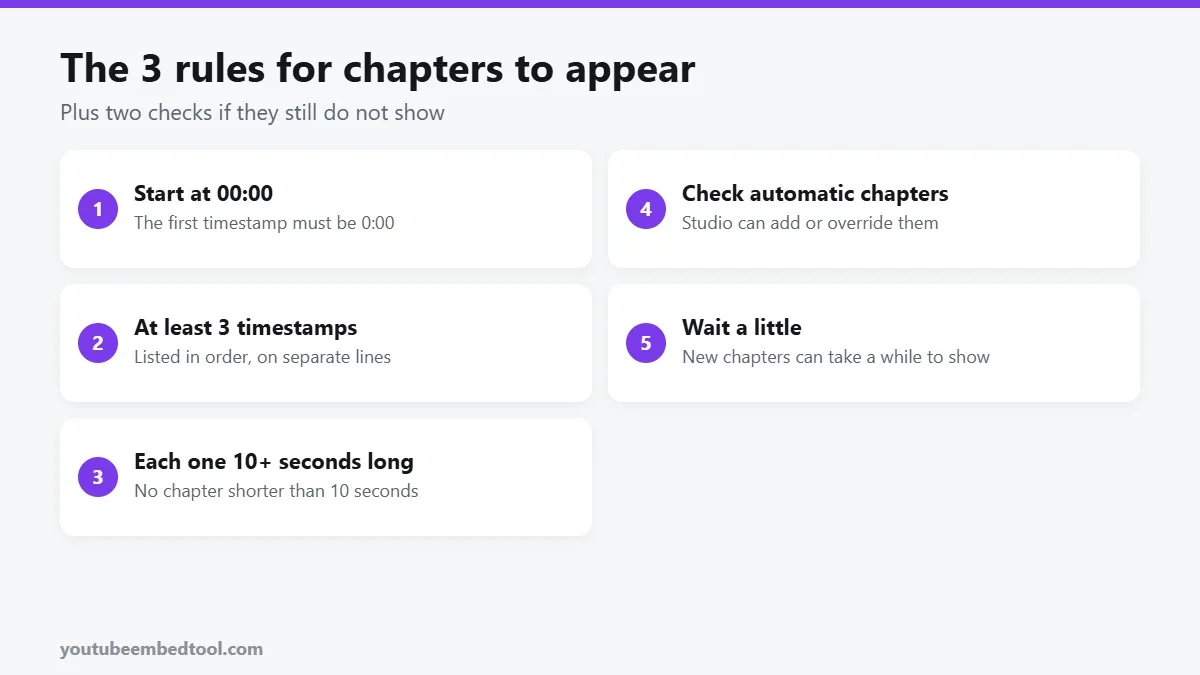
If your chapters don't show up, it's almost always one of these.
1. The first timestamp must be 00:00. Not 00:01, not 0:05. If your intro starts at 0:05, still label 00:00 as the start.
2. You need at least three timestamps. Two isn't enough. They must be in ascending order, each on its own line.
3. Every chapter must be at least 10 seconds long. If two timestamps are 6 seconds apart, YouTube ignores the whole list.
The format is flexible: 0:00, 00:00 and 1:02:30 (for long videos) all work. You can put text before or after the time, but keeping the time at the start of the line is clearest.
Adding chapters step by step
- Open YouTube Studio and click Content.
- Click the pencil icon next to the video.
- In the Description box, paste your timestamp list.
- Click Save.
That's all. You can add chapters to old videos too, and it's a great way to give an old tutorial a second life.
How to find the timestamps quickly
Scrubbing through your own video and writing down times is tedious. A few shortcuts:
- Use keyboard shortcuts. On YouTube, the arrow keys jump 5 seconds and J or L jump 10 seconds. Our list of YouTube keyboard shortcuts has the rest.
- Slow it down or speed it up. Watching at 1.5x or 2x is a fast way to skim for section changes. More tricks in YouTube playback speed tricks.
- Use your editing timeline. If you edited the video yourself, your editor already shows where each section starts.
- Check the auto chapters. YouTube can suggest chapters automatically (more on this below). They're a good first draft.
Automatic chapters
YouTube can create chapters for you based on what it detects in the video. You'll find the setting when editing a video: click Show more and look for Allow automatic chapters.
Two things to know:
- If you add your own timestamps, they take priority over automatic ones.
- If you don't want automatic chapters, untick the box. Sometimes they split a video in odd places.
Why chapters still don't show
You followed the rules and still nothing? Check these:
- There's a typo. A timestamp like
1:3O(with a letter O) breaks the list. So does a time that goes backwards. - There's a stray time elsewhere in the description. A random time above your list can confuse things. Keep the chapter list together.
- Your channel isn't eligible. Channels with active Community Guidelines strikes may not get chapters. Check the features eligibility section in YouTube Studio.
- It's too soon. Changes can take a little while to appear, especially on mobile apps.
- It's a Short. Shorts don't support chapters.
Naming chapters well
Good chapter titles do two jobs: help viewers skim and help search. A few tips:
- Describe what happens, not where you are. "Fixing the autoplay bug" beats "Part 3".
- Use words people search for. If people search "how to embed a playlist", a chapter called "Embedding a playlist" can match.
- Keep them short. Around 3 to 6 words reads best on the progress bar.
- Don't stuff keywords. Chapters full of repeated phrases look spammy and help nobody.
Sharing a specific chapter
Chapters are perfect for sharing. Instead of sending someone a 20-minute video, send them the 2-minute chapter that answers their question.
Our Timestamp Link Generator turns any video link and time into a link that starts at exactly that moment. It works for normal links, short youtu.be links and embeds. If you're sharing from your phone, see how to share a YouTube video at a timestamp on mobile.
If you're embedding the video on your site and want it to start at a chapter, add start with the time in seconds to the embed URL. Our guide on starting a YouTube video at a specific time shows how.
Summary
- Put timestamps in the description, starting with 00:00.
- Use at least three, in order, each at least 10 seconds long.
- Name them by what happens, in plain words.
- Share the best chapter with a timestamp link.
It's ten minutes of work per video, and it makes every video easier to watch, easier to find and easier to share.
Frequently asked questions
How do I add chapters to a YouTube video?
Add a list of timestamps with titles to the video description, starting with 00:00. Use at least three timestamps, each at least 10 seconds apart.
Why are my YouTube chapters not showing?
The first timestamp may not be 00:00, there may be fewer than three, a chapter may be shorter than 10 seconds, or there may be a typo in a time.
Can YouTube add chapters automatically?
Yes. The Allow automatic chapters setting lets YouTube create chapters. Your own timestamps in the description take priority.
Do YouTube Shorts support chapters?
No. Chapters are only available on regular long-form videos.