YouTube Shorts Tips: Hidden Settings Creators Miss
The most effective YouTube Shorts tips center on mastering subtle upload settings, visual pacing, and native platform features that creators often ignore. By tweaking thumbnail frame selectors, linking related long-form videos, adjusting audio ducking, and managing distribution toggles, you can significantly increase retention and convert casual swipers into permanent subscribers.
While many creators focus purely on quick editing styles, overlooking native YouTube Studio options can cut your reach in half. Here is a breakdown of the practical settings, technical adjustments, and upload tricks you need to optimize your vertical videos.
The Overlooked Upload Settings in YouTube Shorts
Many settings that dictate how a Short performs are tucked away inside the mobile YouTube app or deep within YouTube Studio on desktop.
1. Set a Custom Thumbnail Frame on Mobile
Unlike standard videos where you can upload a separate image file at any time, Shorts rely on an exact video frame chosen during the mobile upload flow. Once published, this frame cannot be changed on desktop.
- Record or edit your video, placing a visually arresting "cover frame" somewhere in your timeline (even for just 2–3 frames).
- Open the YouTube mobile app, tap the + icon, and select Upload a video.
- On the final upload screen where you enter your title, tap the pencil icon located in the top-left corner of the video preview.
- Scrub through the timeline slider to pinpoint your chosen frame.
- Tap Done before hitting upload.
Selecting a clear frame with high contrast makes a huge difference when your Short appears on your channel page or in search results.
2. Link a Related Video for Seamless Funneling
YouTube lets creators attach an official "Related video" link directly inside a Short. This clickable pill appears above your video title on the bottom left, providing an intuitive path for viewers to watch your full-length content.
- Go to YouTube Studio on desktop.
- Click Content from the left navigation and open your Short's details.
- Locate the Related video field on the right sidebar.
- Select any long-form video, live stream, or another Short from your channel.
- Save your changes.
This single setting transforms Shorts into high-converting teasers for deep-dive tutorials, podcasts, and product reviews.
Practical YouTube Shorts Tips to Skyrocket Viewer Retention
Retention in the Shorts feed is calculated differently than on standard videos. Because viewers can swipe away in a fraction of a second, your video needs immediate visual traction and seamless loops.
Hook the First Three Frames, Not Just Three Seconds
Old advice told creators to hook viewers in the first three seconds. In the modern Shorts feed, three seconds is far too slow. Viewers decide whether to swipe within 300 to 500 milliseconds.
- Cut the wind-up: Never start with an intro title, a greeting, or a deep breath. Begin mid-sentence or mid-action.
- Use movement in frame one: Start with camera movement, a sudden gesture, or on-screen text that creates immediate curiosity.
- Avoid dead air: Trim the head and tail of your audio timeline so sound starts the millisecond the clip loads.
Build Intentional Loop Transitions
A Short that loops smoothly often registers retention rates above 100%, signaling high engagement to the recommendation engine. To build an imperceptible loop:
| Technique | How to Execute | Best Used For |
|---|---|---|
| Sentence Continuity | End the video on an incomplete phrase that connects directly to the opening word. | Educational tips and trivia |
| Match Cut Action | End the final shot with an object or hand leaving the frame right where it enters in frame one. | Visual crafts, cooking, and fitness |
| Audio Tail Match | Let the background music resolve across the cut boundary without a fade-out. | Storytelling and vlog-style clips |
Adapt to the Right Aspect Ratio and Safe Zones
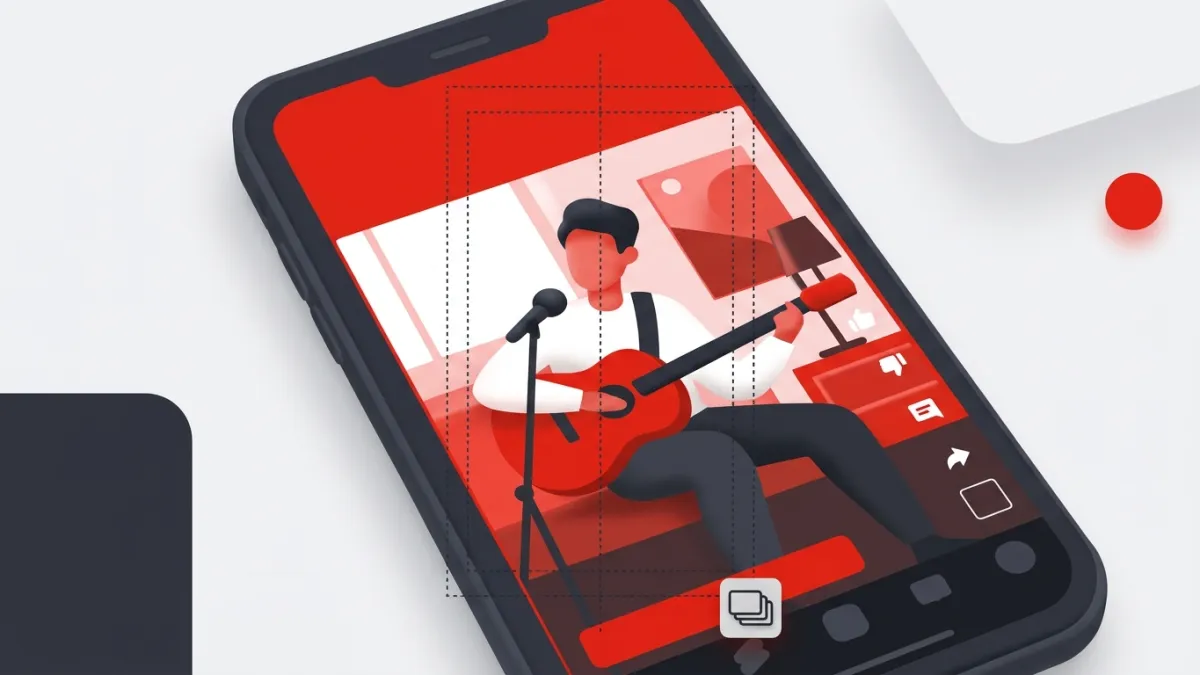
Nothing ruins retention faster than important text hidden behind interface buttons. Keep your graphics inside the vertical safe zone:
- Top 15%: Avoid putting text here; the sound picker, search icon, and header live in this region.
- Right 20%: Leave this space clear of critical visual elements, as the Like, Dislike, Comments, Share, and Remix buttons overlay this side.
- Bottom 25%: The channel avatar, subscribe button, and title occupy this section.
- Center sweet spot: Keep all core captions, diagrams, and focal points strictly in the center 60% of the screen.
With YouTube launches 3-minute Shorts globally, you have much more freedom to tell complex stories, but staying inside these UI safe boundaries remains essential regardless of length.
Audio, Captions, and Distribution Secrets
Sound design and platform distribution rules dictate whether your vertical videos break through algorithmic ceilings.
Balance Native Sound with Original Voiceover
If you use trending audio from the YouTube Shorts sound library, adjust the volume sliders properly. Tap the Volume mixer after selecting a track. Drop the library music to 10%–20% and keep your original microphone voiceover at 100%. Viewers swipe immediately when loud background tracks drown out speech.
Keep Content Original to Avoid Distribution Dampeners
YouTube actively favors authentic, creator-led videos over mass-scraped clips. Review our breakdown on how YouTube Shorts algorithm updates target unoriginal content to ensure your uploads are not flagged as reused material. Add meaningful commentary, unique editing, or live reactions whenever you incorporate secondary footage.
Manage the "Publish to Subscriptions Feed" Checkbox
Inside YouTube Studio on desktop, expand the Show More section under upload details and look for Publish to subscriptions feed and notify subscribers.
- Keep it checked if the Short is highly relevant to your existing core audience.
- Uncheck it if you are experimenting with an entirely new niche or testing rapid-fire formats. This prevents fatigue among regular long-form subscribers while letting the algorithmic Shorts feed find a fresh audience organically.
Expanding Reach Beyond the YouTube App
Do not limit your vertical content exclusively to the in-app feed. Embedding vertical clips into blog posts, resource hubs, and landing pages exposes your work to search engine traffic and desk-bound viewers.
Learn how to embed YouTube Shorts on your website with clean formatting. If you want to forecast earnings across combined vertical and horizontal viewership, plug your analytics into our YouTube Money Calculator to see realistic revenue projections based on views and RPMs.
Quick Pre-Publish Checklist
Before you hit publish on your next upload, verify these four items:
- Title Length: Keep it under 50 characters so it does not truncate on mobile screens.
- Thumbnail: Pinned using the mobile app pencil icon on an expressive, clear frame.
- Safe Zones: Captions positioned dead center, well clear of the right-hand interaction icons.
- Related Link: Connected on desktop Studio to your most relevant long-form video or playlist.
Frequently asked questions
Can I change a YouTube Short thumbnail after uploading?
You can only select a custom frame using the mobile YouTube app during the initial upload process. Once a Short is published, YouTube Studio desktop does not allow custom thumbnail uploads for Shorts appearing in the vertical feed.
What is the ideal video length for a YouTube Short?
While Shorts support lengths up to three minutes, clips between 25 and 45 seconds generally produce the highest completion rates. Only extend the duration if your pacing justifies the extra watch time.
Does embedding Shorts on my website count toward view counts?
Yes, embedded Shorts that play on external sites contribute to your overall video view count, provided the playback meets YouTube's standard view verification requirements.
Why does my Short lose quality after upload?
YouTube compresses vertical uploads heavily during initial processing. To preserve visual sharpness, export in 1080x1920 or 4K resolution using the H.264 or HEVC codec with a minimum bitrate of 15–20 Mbps.