How to Embed a YouTube Live Stream on Your Website (That Updates Automatically)
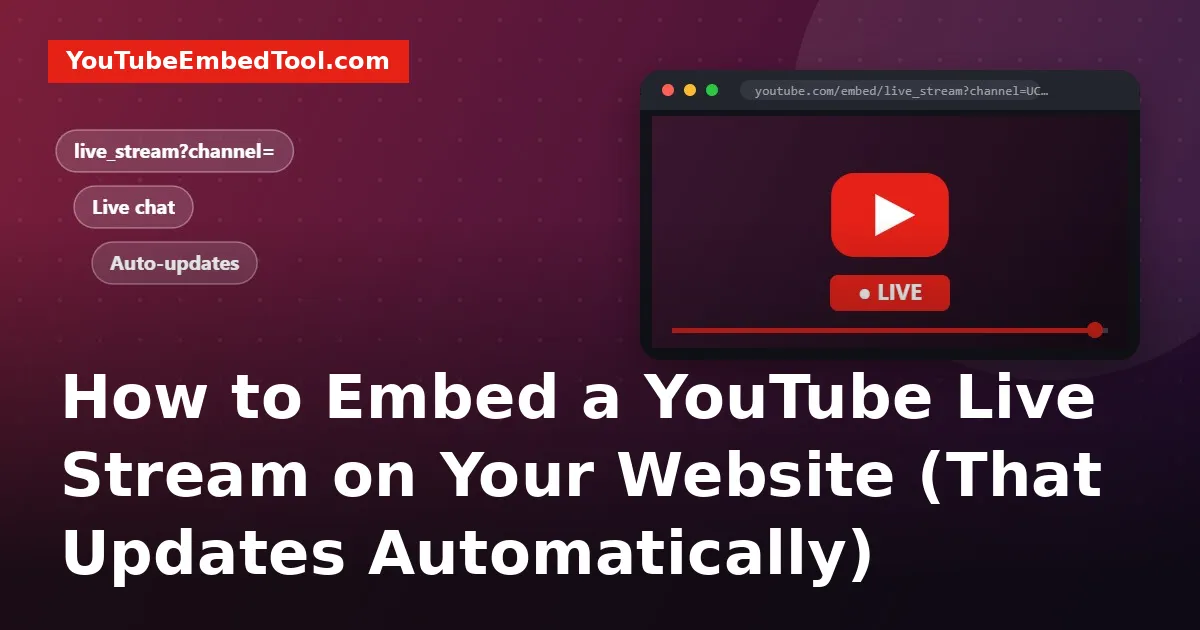
Embedding a normal YouTube video is easy. Embedding a live stream is a little different, because every broadcast gets a brand new video ID. If you paste this week's stream into your page, next week your visitors see last week's replay.
There's a better way: an embed that points at your channel instead of a single video, so it always shows whatever you're streaming right now. Here's how to set it up, how to add live chat, and what to check when it won't play.
Option 1: Embed a single live stream
If you only stream occasionally, or you're embedding someone else's broadcast, use the stream's video ID like any other video:
https://www.youtube.com/embed/VIDEO_IDThe live video's ID is in its watch URL after v=, or after /live/ in links like youtube.com/live/abc123XYZ00. Our Video ID Finder handles both formats. Paste the ID into the Embed Code Generator to get a responsive code.
When the stream ends, the same embed shows the replay (if you've kept it public).
Option 2: Embed your channel's live stream (auto-updating)
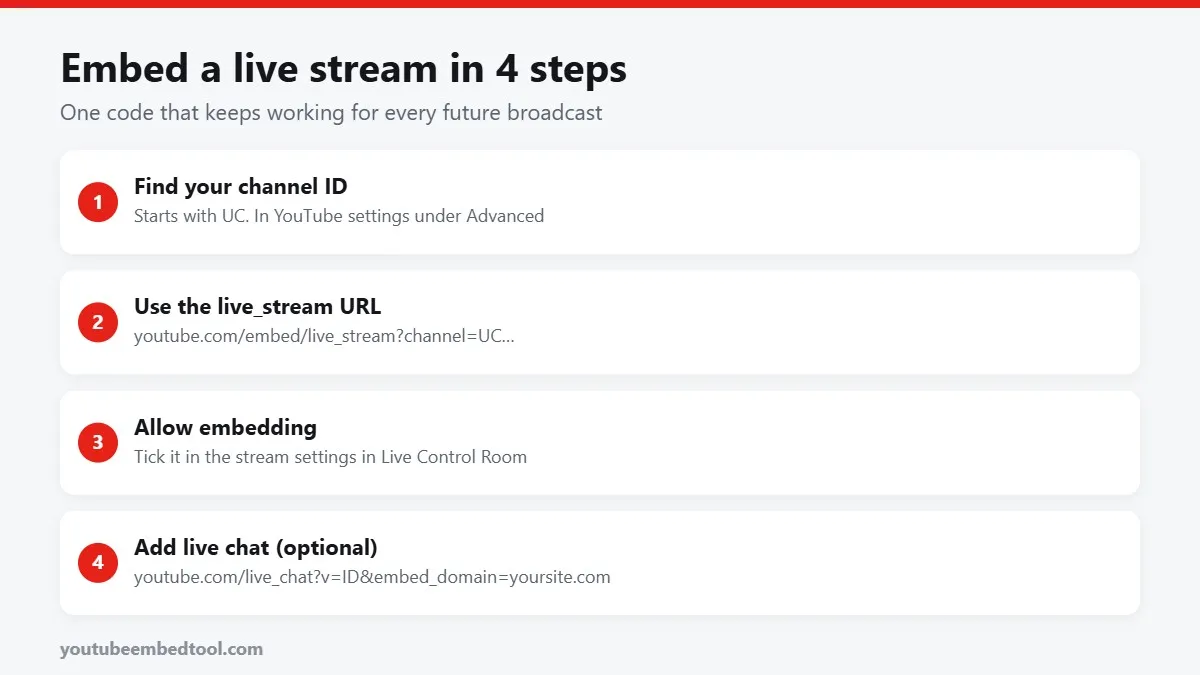
This is the one most churches, schools, sports clubs and event sites want. It uses your channel ID instead of a video ID:
https://www.youtube.com/embed/live_stream?channel=YOUR_CHANNEL_IDWhenever your channel is live, the player shows that broadcast. You set it up once and never touch it again.
Finding your channel ID
Your channel ID is not your @handle. It's a 24-character code that starts with UC. To find it:
- Sign in to YouTube and click your profile picture.
- Go to Settings, then Advanced settings.
- Copy the Channel ID.
You can also find it in YouTube Studio under Customisation, then Basic info, where your channel URL is listed.
A complete, responsive embed code
<div style="position:relative;padding-bottom:56.25%;height:0;overflow:hidden">
  <iframe src="https://www.youtube.com/embed/live_stream?channel=YOUR_CHANNEL_ID"
    style="position:absolute;top:0;left:0;width:100%;height:100%;border:0"
    title="Live stream"
    allow="autoplay; encrypted-media; picture-in-picture; fullscreen"
    referrerpolicy="strict-origin-when-cross-origin"
    allowfullscreen></iframe>
</div>
The wrapper keeps the player in a 16:9 shape on phones. If you want more on that, see how to make a YouTube embed responsive.
What visitors see when you're offline
Between streams, the channel embed shows a message that the channel isn't live, or a countdown if you've scheduled your next stream in advance. Scheduling streams ahead of time is a nice touch: people who land on the page see exactly when to come back.
A small honest note: YouTube has never documented the live_stream?channel= URL as an official feature, and some site owners report it occasionally showing an old broadcast or nothing at all. For a big one-off event, it's worth swapping in the specific video ID on the day as a backup.
Adding live chat next to the video
Live chat is what makes a stream feel live. You can embed it with this URL:
https://www.youtube.com/live_chat?v=VIDEO_ID&embed_domain=yourdomain.comTwo details matter:
embed_domainmust exactly match your site's domain, withouthttps://orwwwunless your site uses www. If it doesn't match, the chat box stays blank.- Chat needs the specific video ID, not the channel. So for chat, update the ID for each stream.
A height of around 500 to 600 pixels works well. On desktop, put chat beside the player; on mobile, stack it underneath.
Viewers need to be signed in to YouTube to type in chat. Everyone can read it.
Settings that stop live embeds working
If your live embed shows "Video unavailable" or won't play, check these in YouTube Studio, then Live Control Room, then Edit stream settings:
- Allow embedding must be ticked. It's a separate setting for live streams and it's easy to miss.
- Visibility must be Public or Unlisted. Private streams don't embed.
- Made for kids streams embed but have chat turned off.
- Age restriction blocks embedding entirely.
Also note that mobile live streaming and embedding have feature eligibility rules tied to your channel, such as having no active strikes. If your settings look right and it still fails, check the Features eligibility section in Studio.
For any other error code, our guide to YouTube embed errors explains what each one means.
Should a live embed autoplay?
You can add autoplay=1&mute=1 to the embed URL so the stream starts as soon as the page opens:
https://www.youtube.com/embed/live_stream?channel=YOUR_CHANNEL_ID&autoplay=1&mute=1The video starts muted (browsers insist on that), and viewers tap to unmute. For a dedicated "Watch live" page this works well. On a normal content page, it can be annoying, so use it with care. More on this in YouTube autoplay not working.
Tips for a better live page
- Put the stream at the top. People arriving on a live page want the video, not three paragraphs about it.
- Add the schedule below the player so visitors know when the next one is.
- Link to replays. After the event, swap in an embed of the full replay, or embed a playlist of past streams.
- Share a timestamped link to the best moment afterwards. The Timestamp Link Generator makes that quick.
That's it. One channel embed, one chat box, and a quick check of the embedding setting will cover almost every live stream page you'll ever need.
Frequently asked questions
How do I embed a YouTube live stream that updates automatically?
Use https://www.youtube.com/embed/live_stream?channel=YOUR_CHANNEL_ID with your channel ID that starts with UC. It shows whatever your channel is streaming at the time.
Where do I find my YouTube channel ID?
In YouTube go to Settings, then Advanced settings, and copy the Channel ID. It is 24 characters long and starts with UC.
Can I embed YouTube live chat on my website?
Yes. Use https://www.youtube.com/live_chat?v=VIDEO_ID&embed_domain=yourdomain.com and make sure the domain matches your site exactly.
Why is my YouTube live stream embed not working?
The most common reason is that Allow embedding is turned off in the stream settings. Private and age-restricted streams cannot be embedded either.