How to Add a YouTube Video to an Email (Gmail, Outlook and Newsletters)
Here's something that surprises a lot of people: you can't put a playable YouTube video inside an email. Not in Gmail, not in Outlook, not in Mailchimp. Email apps block the iframes and scripts that video players need, for security reasons, and they've done so for years.
But there's a simple workaround that every email marketer uses, and honestly it works better than an embedded player would. You show an image of the video with a play button, and link it to YouTube. One click and the viewer is watching.
Why you can't embed a YouTube video in an email
On a web page, a YouTube embed is an iframe, a little window that loads YouTube's player. Email clients strip out iframes and JavaScript completely, because they could be used to track people or run harmful code. So whatever embed code you paste, the inbox removes it.
A few clients (Apple Mail, some versions of iOS Mail) can play an HTML5 video file directly, but that needs a raw MP4 file, not a YouTube link, and it fails everywhere else. For YouTube, the image method is the only reliable option.
The clickable thumbnail method
Step 1: Get the video's thumbnail
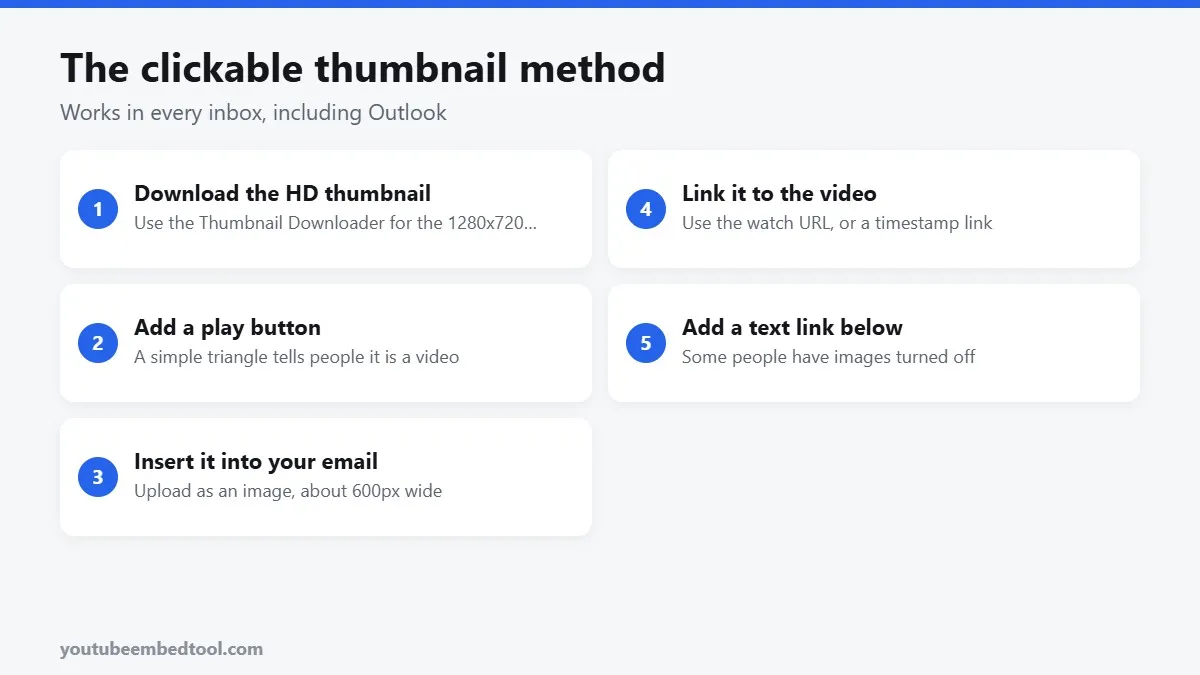
Every YouTube video has a thumbnail stored at a predictable address. The easiest way to grab the full-quality version is our YouTube Thumbnail Downloader. Paste the video link and download the largest size (usually 1280x720).
If you want to know how those sizes work, see how to download a YouTube thumbnail in full HD.
Step 2: Add a play button
This step makes a real difference. A thumbnail on its own looks like any other picture. A thumbnail with a play button in the middle instantly says "this is a video", and people click it.
You can add one in Canva, Photoshop or any free image editor: a red or dark rounded rectangle with a white triangle, sitting in the centre. Keep it big enough to see on a phone.
Some email platforms (Mailchimp's video block, for example) add the play button for you when you paste a YouTube link. Check your tool first; it may save you a step.
Step 3: Put the image in your email
- Gmail: click the image icon in the compose window, upload your thumbnail, then select it and click the link icon.
- Outlook: go to Insert, then Pictures, add the image, then right-click it and choose Link.
- Newsletter tools (Mailchimp, Brevo, ConvertKit and others): drop in an image block, upload the thumbnail and set its link.
About 600 pixels wide is the sweet spot for most email layouts.
Step 4: Link it to the video
Use the normal YouTube watch link:
https://www.youtube.com/watch?v=VIDEO_IDWant people to land on a specific moment, like the part where you show the result? Make a link that starts at that time with our Timestamp Link Generator. It's a small touch that saves your reader from hunting through a 12-minute video.
Step 5: Add a text link underneath
Some people have images switched off in their email, especially in Outlook at work. Add one line of text under the image, like "Watch the 3-minute video", linked to the same URL. It also gives screen readers something to announce.
What about Gmail's video preview?
When you send a plain YouTube link in Gmail, the recipient sometimes sees a small preview of the video at the bottom of the message. That's Gmail being helpful, and you can't control it. It doesn't appear in every app or for every recipient, so don't rely on it. The thumbnail method works everywhere.
Should you use a GIF instead?
An animated GIF made from a few seconds of the video can get even more clicks, because movement catches the eye. The downsides:
- GIFs are heavy. Keep it under about 1 MB or the email loads slowly.
- Outlook on Windows only shows the first frame, so make sure the first frame looks good on its own.
For most emails, a sharp thumbnail with a play button is the best balance.
Small things that lift clicks
- Write a caption that sells the video, not "Watch our new video". Something like "See how we cut our edit time in half (4 min)" works better.
- Mention the length. People are far more likely to click a 3-minute video than a mystery.
- Pick a good frame. If the default thumbnail is dull, use a custom one.
- Use the same image on your site. If you also post the video on your blog, the Embed Code Generator gives you a clean responsive player for the web version.
Summary
You can't embed a playable YouTube video in an email, but you don't need to. Download the HD thumbnail, add a play button, link it to the video, and put a text link underneath. It works in every inbox and usually gets more clicks than a player would. If you're sending people to a video on your own site instead, our tips on getting more views from embedded videos are worth a read.
Frequently asked questions
Can you embed a YouTube video in an email?
Not as a playable video. Email clients block the iframes YouTube uses. Use a clickable thumbnail image with a play button that links to the video instead.
How do I add a YouTube video to Gmail?
Download the video's thumbnail, insert it as an image in the compose window, then select it and add a link to the YouTube URL.
How do I put a YouTube video in an Outlook email?
Insert the video's thumbnail with Insert then Pictures, right-click the image, choose Link, and paste the YouTube URL.
Where do I get a YouTube video's thumbnail for an email?
Paste the video link into a YouTube thumbnail downloader and save the largest size, usually 1280 by 720 pixels.