YouTube-nocookie Embeds and GDPR: Complete Guide
Using a youtube nocookie embed gdpr setup prevents YouTube from storing tracking cookies on your visitors' devices until they click play. While privacy-enhanced mode significantly reduces tracking, European data protection authorities generally hold that the youtube-nocookie.com domain still transmits IP addresses and sets local storage data upon loading, meaning strict GDPR compliance typically requires a user consent banner before the iframe loads.
Here is everything you need to know about how privacy-enhanced mode functions, what it changes under the hood, and how to implement it cleanly on your site.
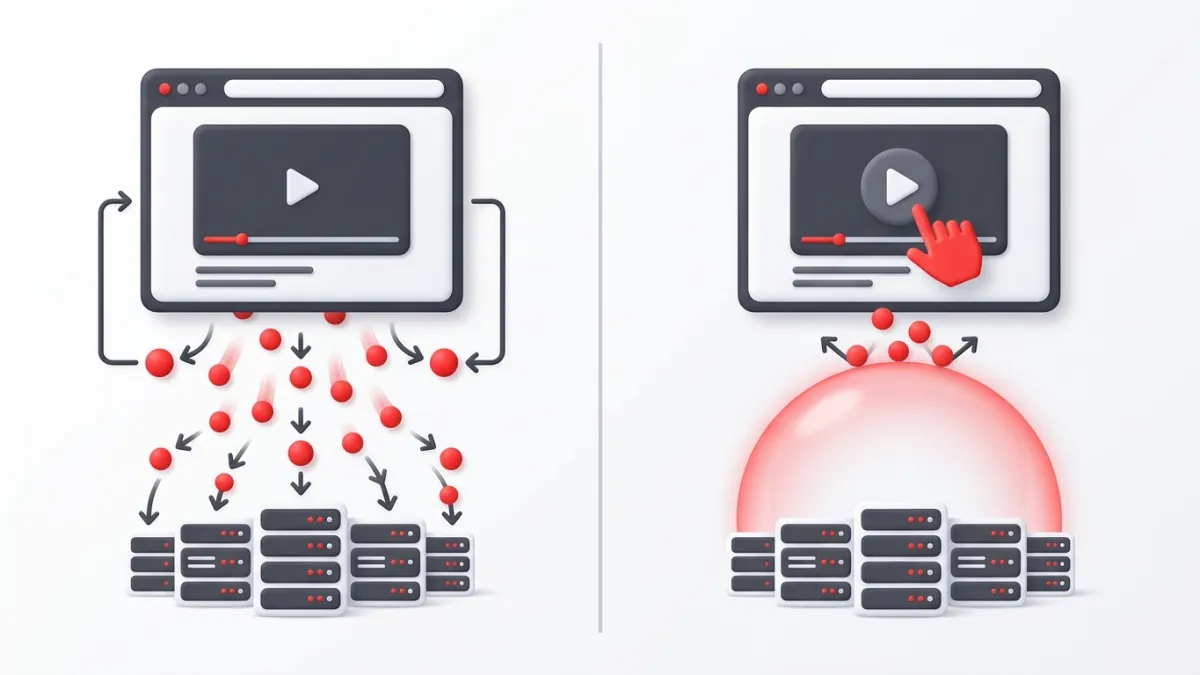
What Is Privacy-Enhanced Mode on YouTube?
Standard YouTube embeds load resources from www.youtube.com. As soon as a user visits a page containing a standard embed, YouTube's servers set advertising and personalization cookies in their browser—even if they never touch the play button.
YouTube's Privacy-Enhanced Mode changes the host domain to www.youtube-nocookie.com. Under this domain:
- No viewing behavior is tracked to personalize YouTube advertising profiles for users who simply scroll past the video.
- Cookie placement is delayed until the visitor actively clicks to watch the video.
- Video playback still functions normally, supporting standard player parameters like captions, controls, and start times.
If you want a hassle-free way to configure these options without writing raw markup manually, our free YouTube Embed Code Generator lets you toggle Privacy-Enhanced Mode with a single click.
Does a YouTube Nocookie Embed Satisfy GDPR Alone?
Short answer: No, not by itself in strict jurisdictions.
Many website owners mistakenly believe switching the URL from youtube.com to youtube-nocookie.com provides automatic exemption from EU consent requirements. While it is vastly better than the default embed, privacy regulators in Germany, France (CNIL), and other European countries have pointed out two key technical realities:
- IP Address Transmission: Establishing an HTTP connection to
youtube-nocookie.comautomatically transmits the user's IP address to Google's servers. Under GDPR, an IP address is categorized as personal data. - Local Storage and Device Fingerprinting: While third-party tracking cookies are withheld prior to playback, browsers still exchange connection headers, and YouTube can allocate HTML5 LocalStorage entries to store player preferences.
| Feature | Standard Embed (youtube.com) | Privacy Mode (youtube-nocookie.com) | Two-Click Consent Solution |
|---|---|---|---|
| Connection on Page Load | Yes | Yes | No (Blocked until approved) |
| Ad Personalization Cookies | Placed immediately | Placed only on playback | Placed only on playback |
| IP Address Sent to Google | Immediately | Immediately | Only after user consent |
| Strict GDPR / ePrivacy Compliance | Non-compliant without prior consent | Borderline / Risky without prior consent | Fully compliant |
If your audience resides in the EU or UK, treating privacy-enhanced mode as an extra security layer alongside a solid consent manager represents the safest path.
How to Create a youtube-nocookie Embed in HTML
Building a privacy-enhanced embed involves replacing the standard YouTube URL in your <iframe> markup. If you already know how to embed a YouTube video in HTML, the syntax will look very familiar.
Step 1: Copy the Video ID
Find the 11-character video ID from your YouTube link (e.g., in https://www.youtube.com/watch?v=dQw4w9WgXcQ, the ID is dQw4w9WgXcQ).
Step 2: Use the Privacy Domain in the iframe Code
Insert the ID into the youtube-nocookie.com embed URL:
<iframe
  width="560"
  height="315"
  src="https://www.youtube-nocookie.com/embed/dQw4w9WgXcQ"
  title="YouTube video player"
  frameborder="0"
  allow="accelerometer; autoplay; clipboard-write; encrypted-media; gyroscope; picture-in-picture; web-share"
  referrerpolicy="strict-origin-when-cross-origin"
  allowfullscreen>
</iframe>
Notice the attributes:
src="https://www.youtube-nocookie.com/embed/...": Directs the browser to YouTube's privacy proxy.referrerpolicy="strict-origin-when-cross-origin": Protects path-level referral information from being exposed across domains.
Step 3: Make the Embed Mobile-Friendly
Fixed widths can break responsive site layouts. Following modern techniques on how to make a YouTube embed responsive on mobile, wrap your privacy iframe in a fluid CSS container:
<div class="video-container">
  <iframe
    src="https://www.youtube-nocookie.com/embed/dQw4w9WgXcQ"
    title="YouTube video player"
    allow="accelerometer; autoplay; clipboard-write; encrypted-media; gyroscope; picture-in-picture"
    allowfullscreen>
  </iframe>
</div>

<style>
.video-container {
  position: relative;
  width: 100%;
  padding-bottom: 56.25%; /* 16:9 Aspect Ratio */
  height: 0;
  overflow: hidden;
}
.video-container iframe {
  position: absolute;
  top: 0;
  left: 0;
  width: 100%;
  height: 100%;
  border: 0;
}
</style>How to Set Up a "Two-Click" GDPR Consent Solution
To achieve true, audit-proof compliance under GDPR while keeping videos on your site, implement a "two-click" (or click-to-load) mechanism. This blocks the iframe from loading entirely until the user clicks an overlay placeholder.
Here is a lightweight, zero-dependency implementation you can adapt:
The HTML Placeholder
<div class="privacy-video-wrapper" data-video-id="dQw4w9WgXcQ">
  <div class="privacy-notice">
    <p>Watching this video requires connecting to YouTube's servers. Personal data, including your IP address, will be shared.</p>
    <button type="button" onclick="loadYoutubeVideo(this)">Accept and Play Video</button>
  </div>
</div>
The CSS Styling
.privacy-video-wrapper {
  position: relative;
  width: 100%;
  max-width: 800px;
  aspect-ratio: 16 / 9;
  background-color: #1a1a1a;
  display: flex;
  align-items: center;
  justify-content: center;
  color: #ffffff;
  text-align: center;
  border-radius: 8px;
  overflow: hidden;
}

.privacy-notice {
  padding: 24px;
  max-width: 450px;
}

.privacy-notice button {
  background-color: #ff0000;
  color: #ffffff;
  border: none;
  padding: 10px 20px;
  border-radius: 4px;
  font-weight: 600;
  cursor: pointer;
  margin-top: 12px;
}

.privacy-notice button:hover {
  background-color: #cc0000;
}
The JavaScript Loader
function loadYoutubeVideo(buttonElement) {
  const wrapper = buttonElement.closest('.privacy-video-wrapper');
  const videoId = wrapper.getAttribute('data-video-id');

  const iframe = document.createElement('iframe');
  iframe.setAttribute('src', `https://www.youtube-nocookie.com/embed/${videoId}?autoplay=1`);
  iframe.setAttribute('title', 'YouTube video player');
  iframe.setAttribute('frameborder', '0');
  iframe.setAttribute('allow', 'accelerometer; autoplay; clipboard-write; encrypted-media; gyroscope; picture-in-picture');
  iframe.setAttribute('allowfullscreen', 'true');
  iframe.style.width = '100%';
  iframe.style.height = '100%';
  iframe.style.position = 'absolute';
  iframe.style.top = '0';
  iframe.style.left = '0';

  wrapper.innerHTML = '';
  wrapper.appendChild(iframe);
}
With this pattern, not a single packet is sent to Google until the user clicks the confirmation button. This satisfies the consent requirement of the ePrivacy Directive and GDPR Article 6.
Best Practices for Compliant YouTube Embedding
When managing embeds across business websites, explore more tutorials in our Embedding Guides section to refine your display workflow. For privacy specifically, follow these core rules:
- Combine Privacy URLs with Consent Tools: Always use
youtube-nocookie.comas your base domain, even when using Consent Management Platforms (CMPs) like Cookiebot, Usercentrics, or Complianz. - Update Your Privacy Policy: State clearly in your privacy documentation that embedded video players transmit technical telemetry to YouTube LLC / Google LLC upon user interaction.
- Use Facade Images: Instead of a generic gray box, use a static preview image as the backdrop for your placeholder banner. This keeps visual appeal high while keeping network connections local until consent is given.
- Audit Short Form Content Too: If you are learning how to embed YouTube Shorts on your website, remember that Shorts URLs follow identical privacy rules—swap their embed URLs to
youtube-nocookie.comjust like standard landscape videos.
Frequently asked questions
Does youtube-nocookie completely block all cookies?
No. It prevents YouTube from setting tracking cookies when the page first loads, but once the user clicks play, YouTube may still set operational and advertising cookies.
Do I need a cookie consent banner if I use youtube-nocookie?
In the EU and UK, yes. Because connecting to the nocookie domain transfers user IP addresses to Google's servers on initial page load, privacy authorities expect prior explicit consent.
Does privacy-enhanced mode hurt video analytics?
No. Creators still receive view counts, watch time metrics, and aggregated analytics in YouTube Studio for videos played via privacy-enhanced embeds.
Can I use URL parameters with youtube-nocookie?
Yes. Standard parameters such as start times, controls, closed captions, and loop settings work the same way as they do on standard embeds.